Transactions
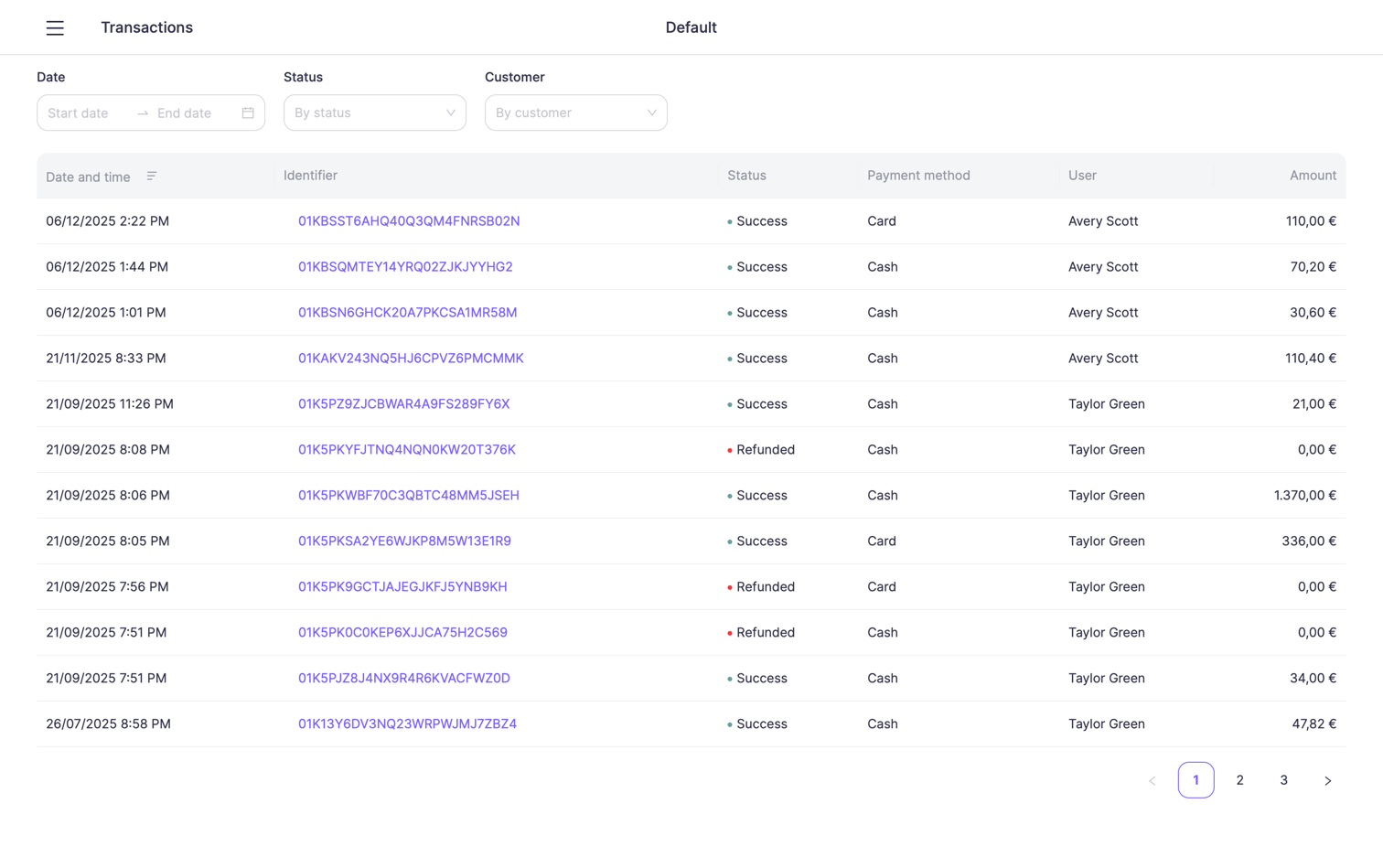
The Transactions section allows you to view, filter, inspect, print, and refund completed sales.
All transactions are stored automatically after each checkout and are linked to the correct location, user, and customer.
Open Transactions
Open Transactions from the sidebar menu to view the full list of sales for the selected location.
The transactions table displays all completed and refunded sales, ordered by date with the most recent at the top.
Each transaction includes basic sale information such as timing, payment details, status, and other relevant transaction data.
Filtering transactions
Use the filters at the top of the screen to quickly find specific transactions.
You can filter by:
- Date range
- Status
- Customer
All filters can be combined to narrow down the results and locate the required sale faster.
Viewing transaction details
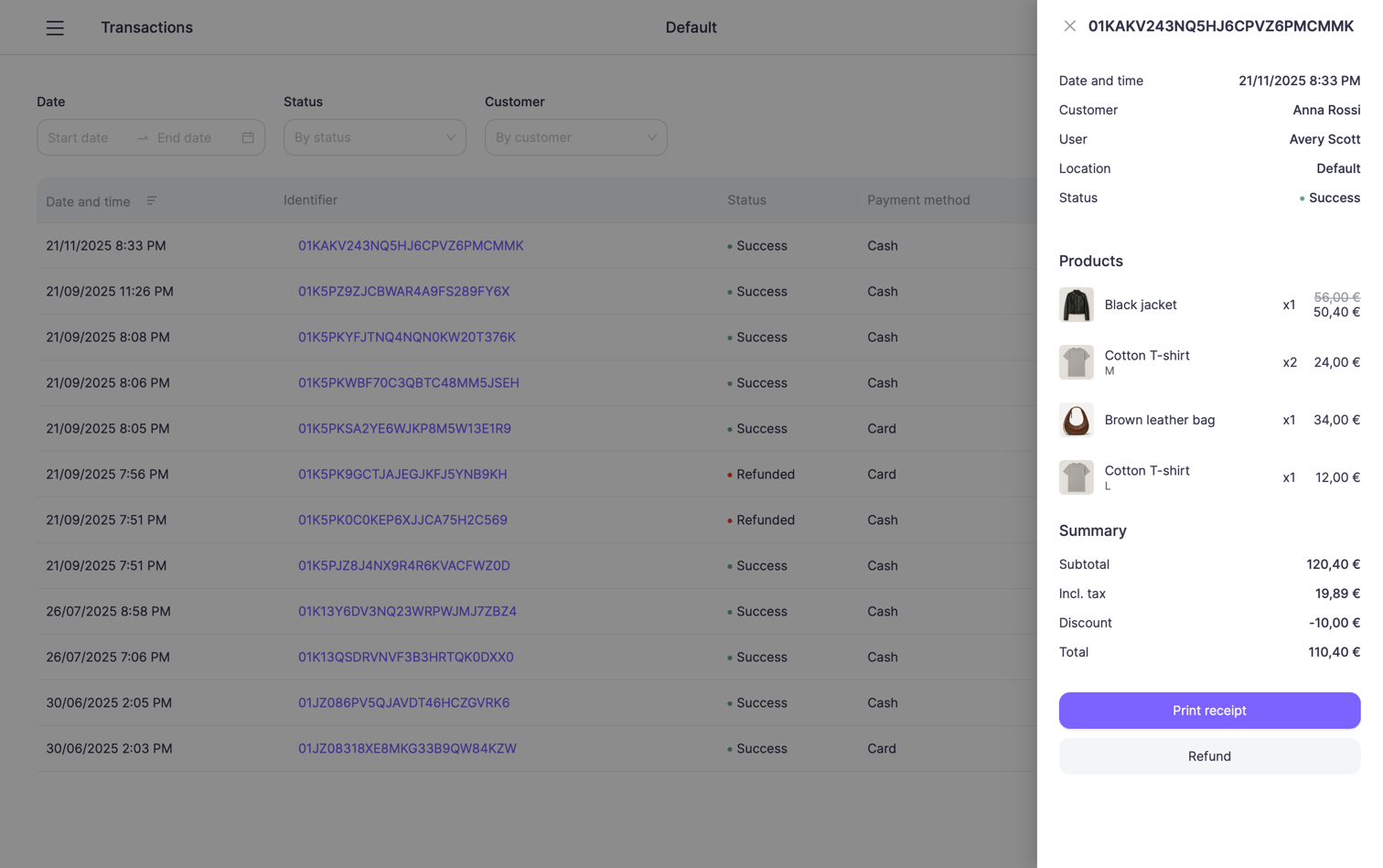
Click on any transaction in the list to open the Transaction details panel.
The details view contains:
General information
- Transaction ID
- Date and time
- Customer
- User — staff member who performed the sale
- Location
- Status
Products
A full list of sold items, including:
- Product name
- Quantity
- Price per item
- Item image (if available)
Summary
The financial breakdown of the transaction:
- Subtotal
- Tax
- Discount
- Total
Print receipt
From the transaction details panel, tap Print receipt to print a copy of the receipt.
- Uses the configured receipt printer
- Works even if automatic receipt printing was disabled
- Useful for reprinting receipts on customer request
Refund a transaction
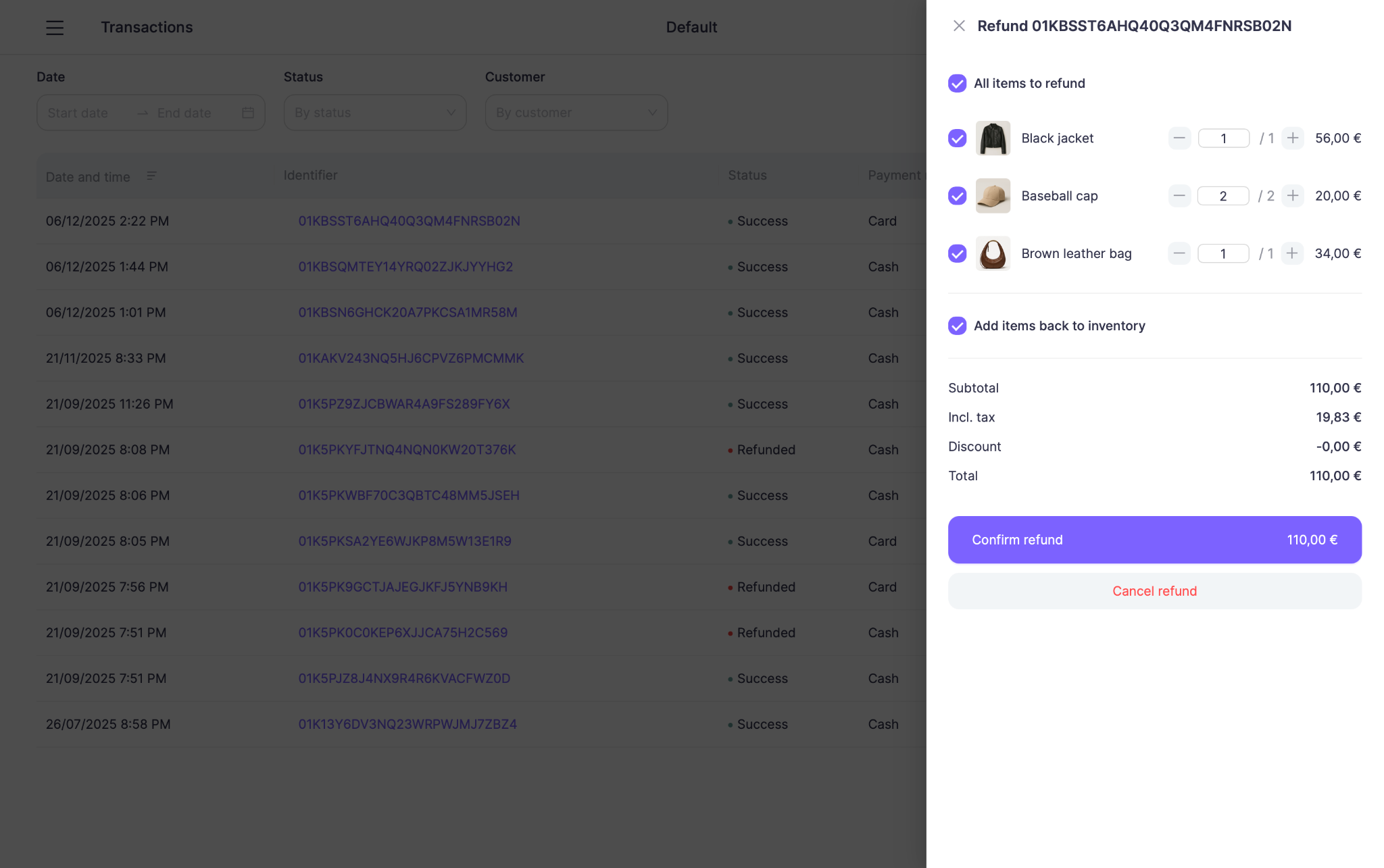
If needed, you can refund a completed transaction from the transaction details view.
How to refund
- Open the transaction from the Transactions list
- Tap Refund
- Choose which items to refund:
- Refund all items, or
- Select specific items and adjust quantities
- (Optional) Enable Add items back to inventory
- Review the refund summary
- Tap Confirm refund
After a refund
Once the refund is confirmed:
- The transaction status changes to Refunded
- Refunded items are clearly marked in the transaction details
- The refunded amount and refunded tax are shown in the summary
- You can:
- Print the original receipt
- Print a refund receipt
All refund actions are logged and remain visible in the transaction history for reporting and auditing purposes.
⚠️ Refund behavior for card payments depends on your payment provider.
In some cases, the refund must also be completed on the physical payment terminal.