Customers
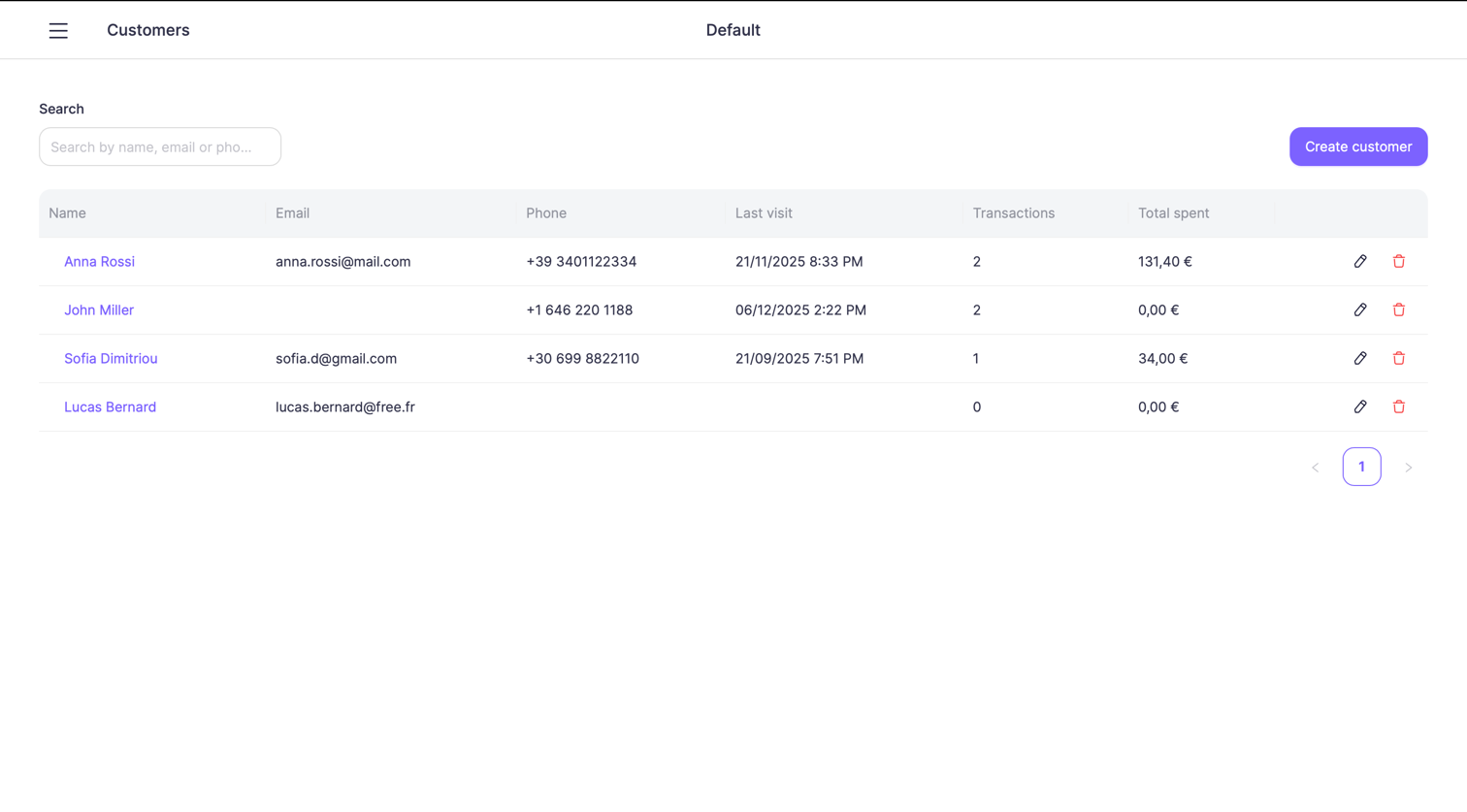
The Customers section allows you to manage your customer base, view purchase history, and track customer activity across transactions.
Customers can be linked to sales to provide better insights into visit frequency and total spending.
Open Customers
Open Customers from the sidebar menu to view the list of customers for the selected location.
You can use the search field to quickly find a customer by name, email, or phone number.
View customer details
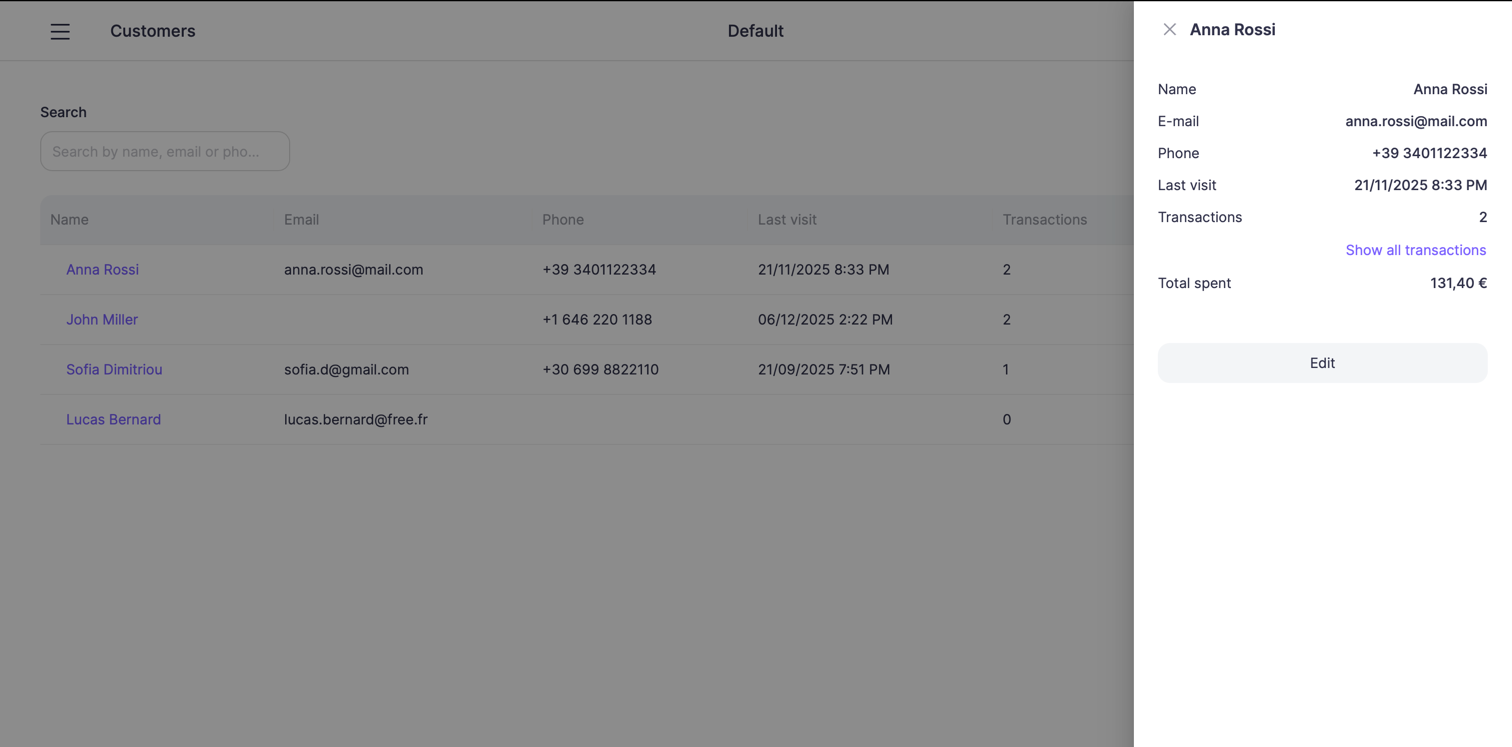
To view customer details:
- Click on the customer name in the list
This opens the Customer details panel.
From this panel, you can also navigate to the customer’s full transaction history.
Create a customer
To add a new customer:
- Click Create customer
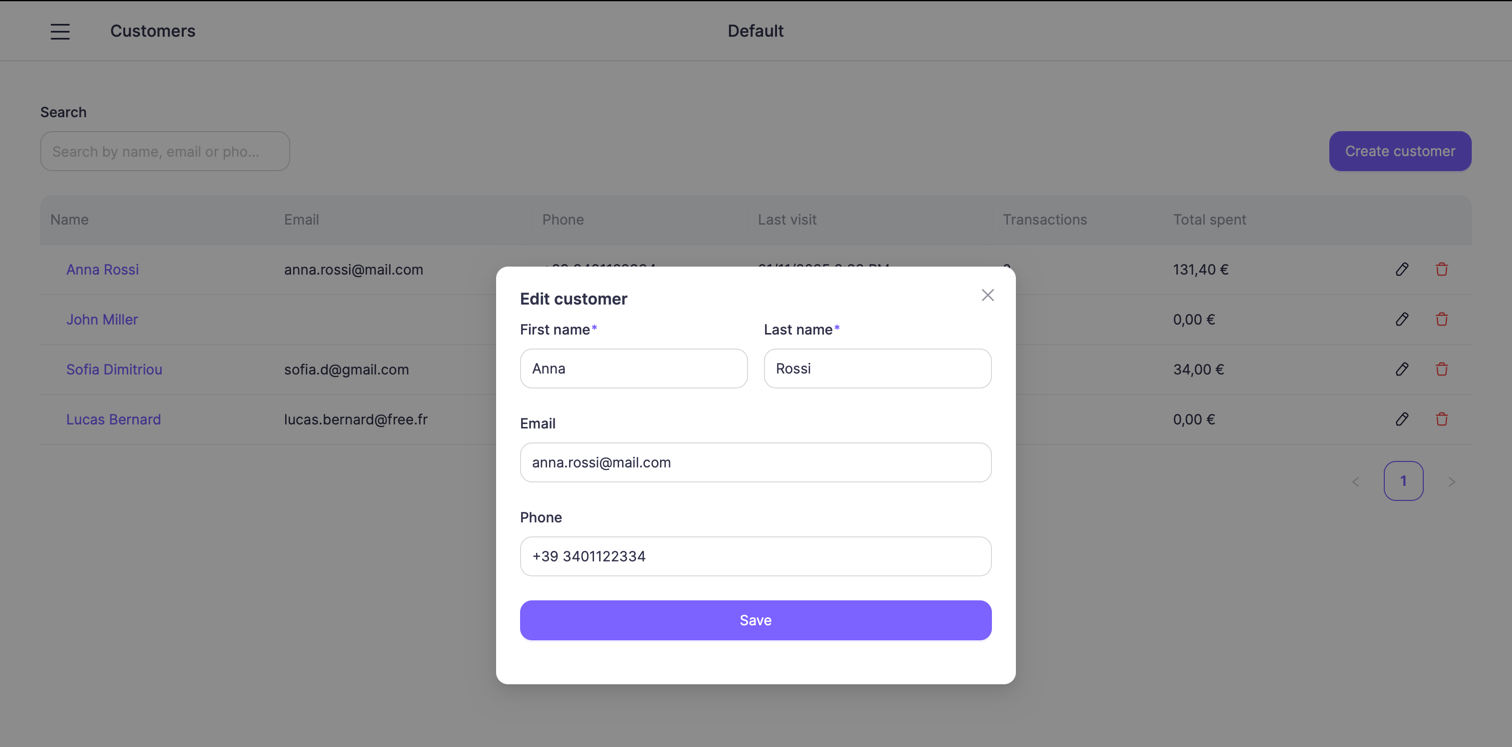
- Fill in the customer information:
- First name
- Last name
- Email (optional)
- Phone (optional)
- Click Save
Edit a customer
To edit an existing customer:
- Click the edit icon next to the customer in the list
or
Click Edit from the customer details panel - Update the customer information
- Click Save
Delete a customer
To remove a customer:
- Click the delete icon next to the customer in the list
⚠️ Customers with existing transactions may be restricted from deletion to preserve transaction history.
Customer transactions
Customers are automatically linked to transactions when selected during checkout.
From the customer details panel, you can:
- View the total number of transactions
- Open the full list of transactions associated with the customer
This helps you track customer behavior and purchase patterns over time.