Logging in to Heksia POS
When launching the Heksia POS app for the first time, you will need to sign in using the email and password of an Admin user.
Sign in with your Admin credentials
Enter your email and password, then tap Login.
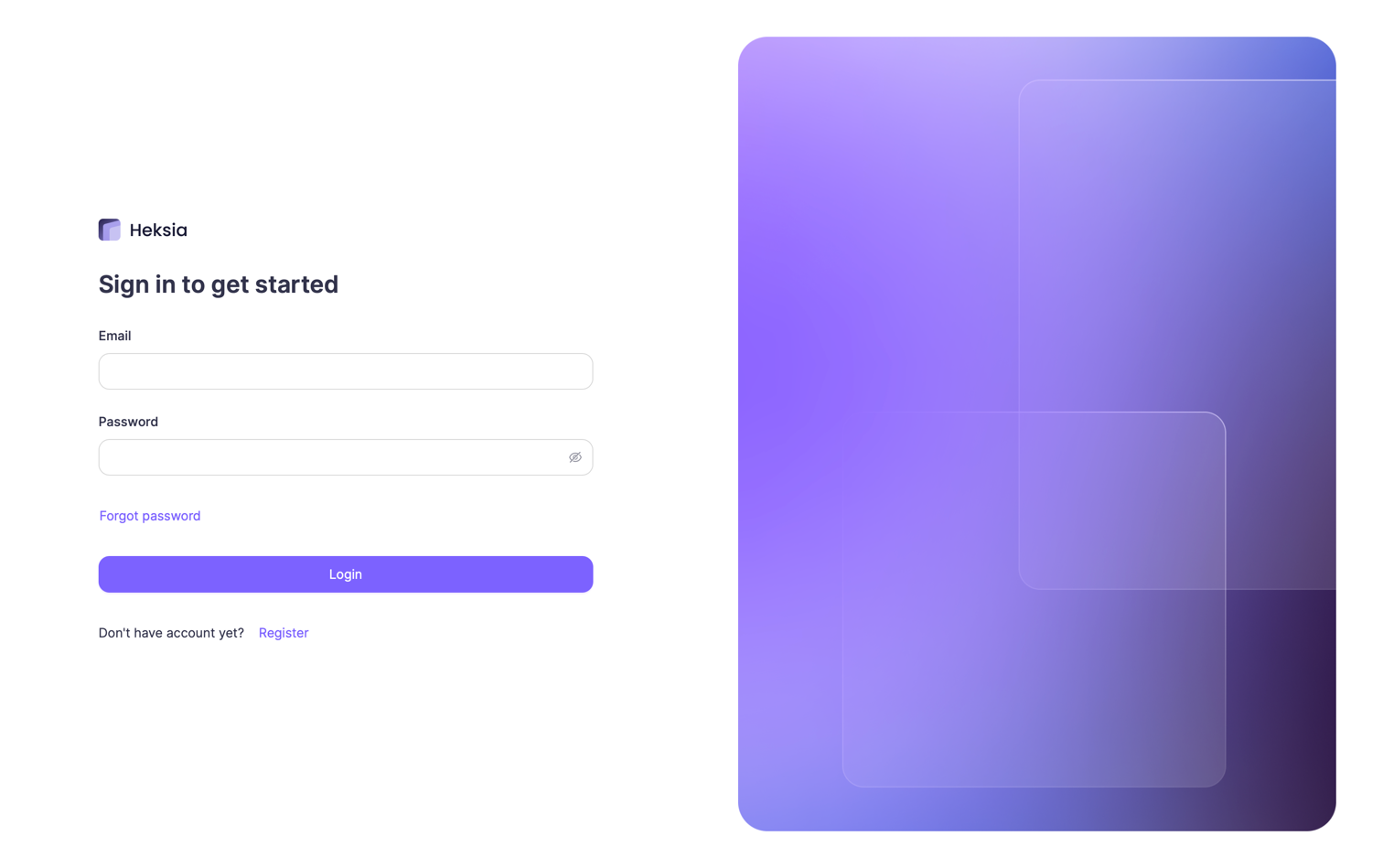
If you forgot your password, you can reset it using the Forgot password link.
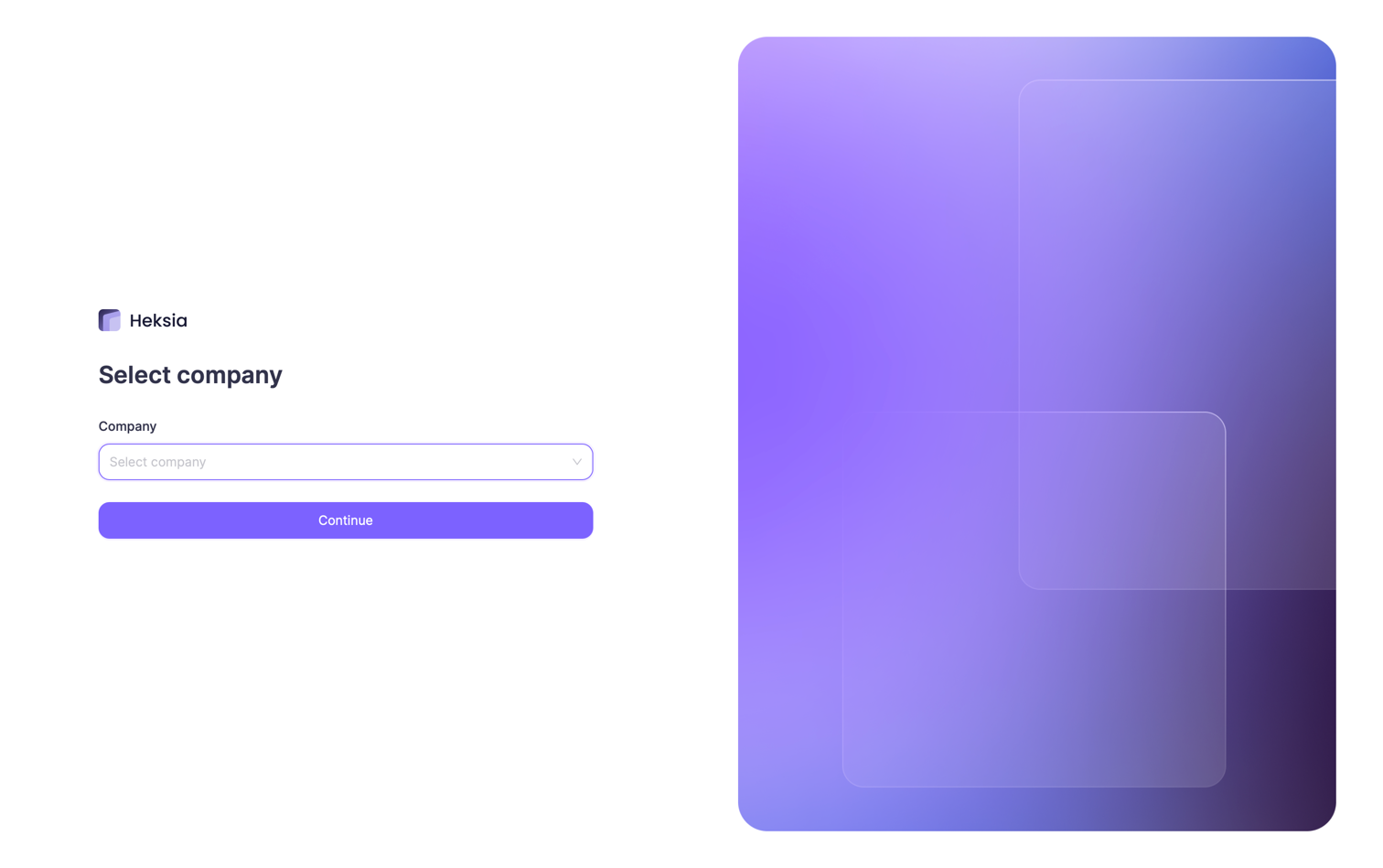
Select your company (if applicable)
If your email is associated with multiple companies, you will be prompted to choose a company before continuing.
Choose your location
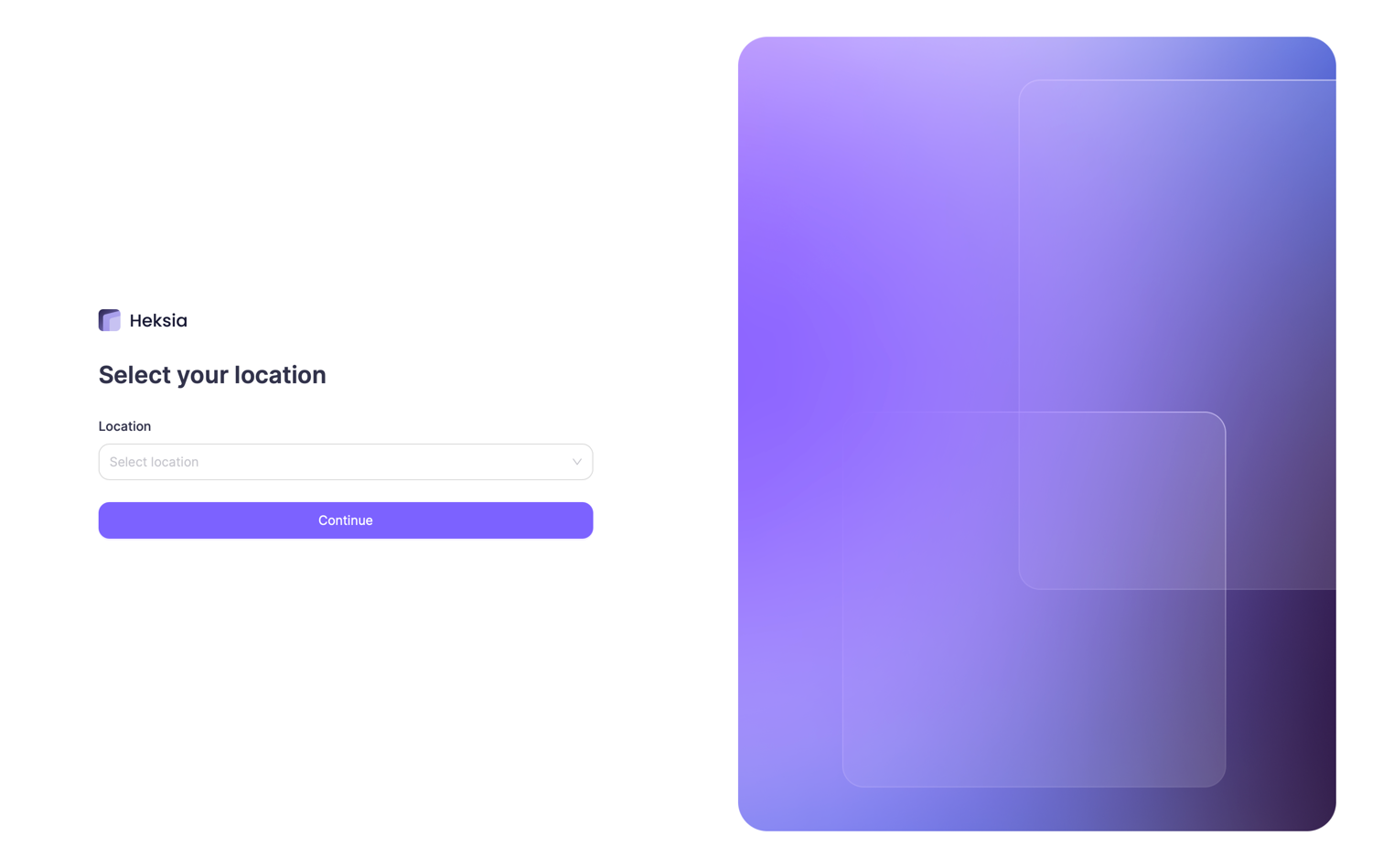
After selecting a company, choose the location where the device will operate.
All sales and receipts created in the POS app will be tied to this location.
Main Screen
After completing the login flow, you’ll be taken to the main POS screen, where you can:
- Browse or search products
- Add items to the receipt
- Apply discounts
- Add customers
- Process payments
- And much more
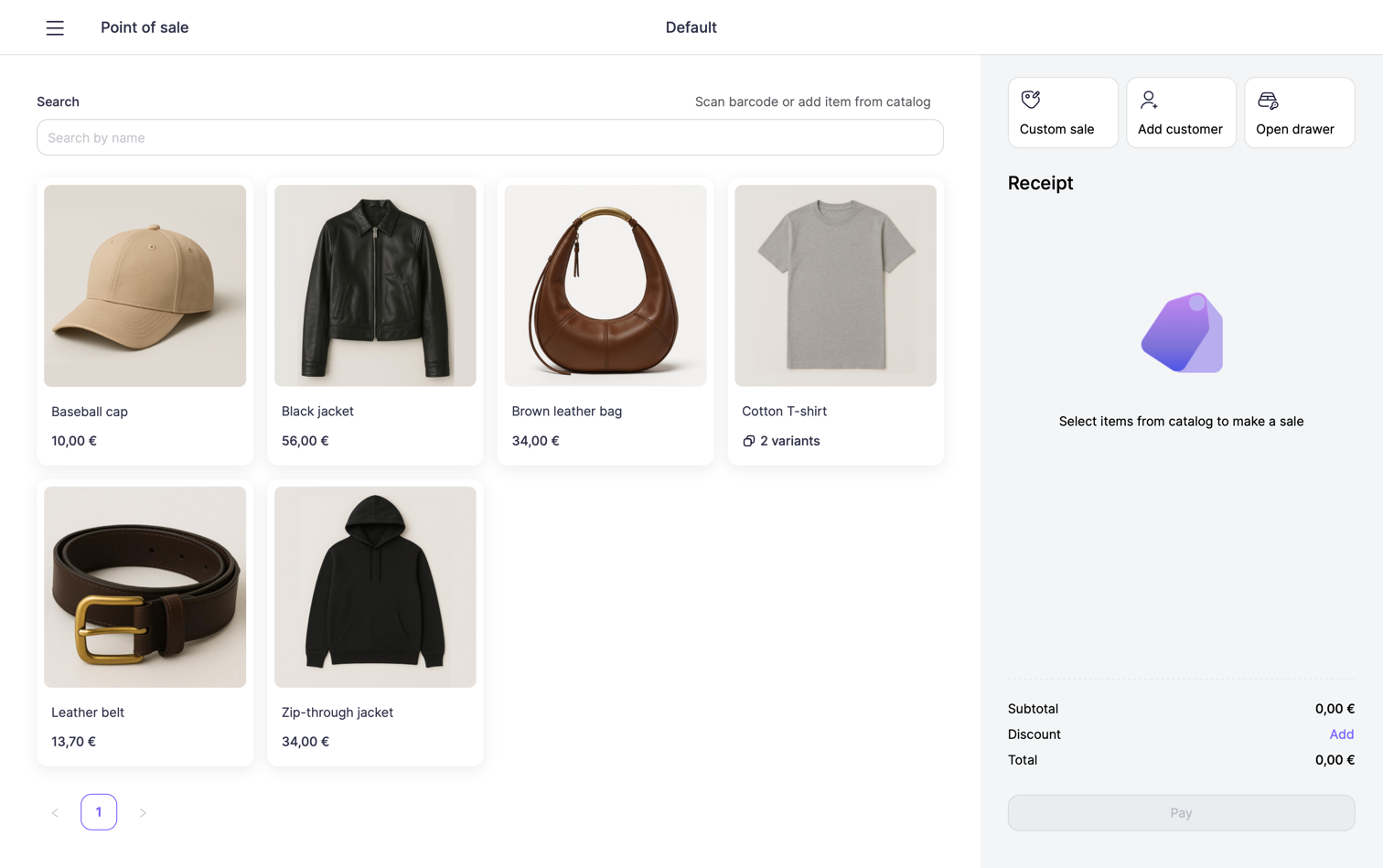
This screen is your main workspace for handling daily sales operations.
Sign in with a Cashier Account
Heksia POS allows quick switching between users using the Lock screen and PIN-based login.
This is especially useful for cashiers working on the same device and location.
How to switch users
- Open the menu (top-left corner).
- At the top, you will see the current logged-in user.
- Click Lock screen.
- The app will lock and show the PIN login screen.
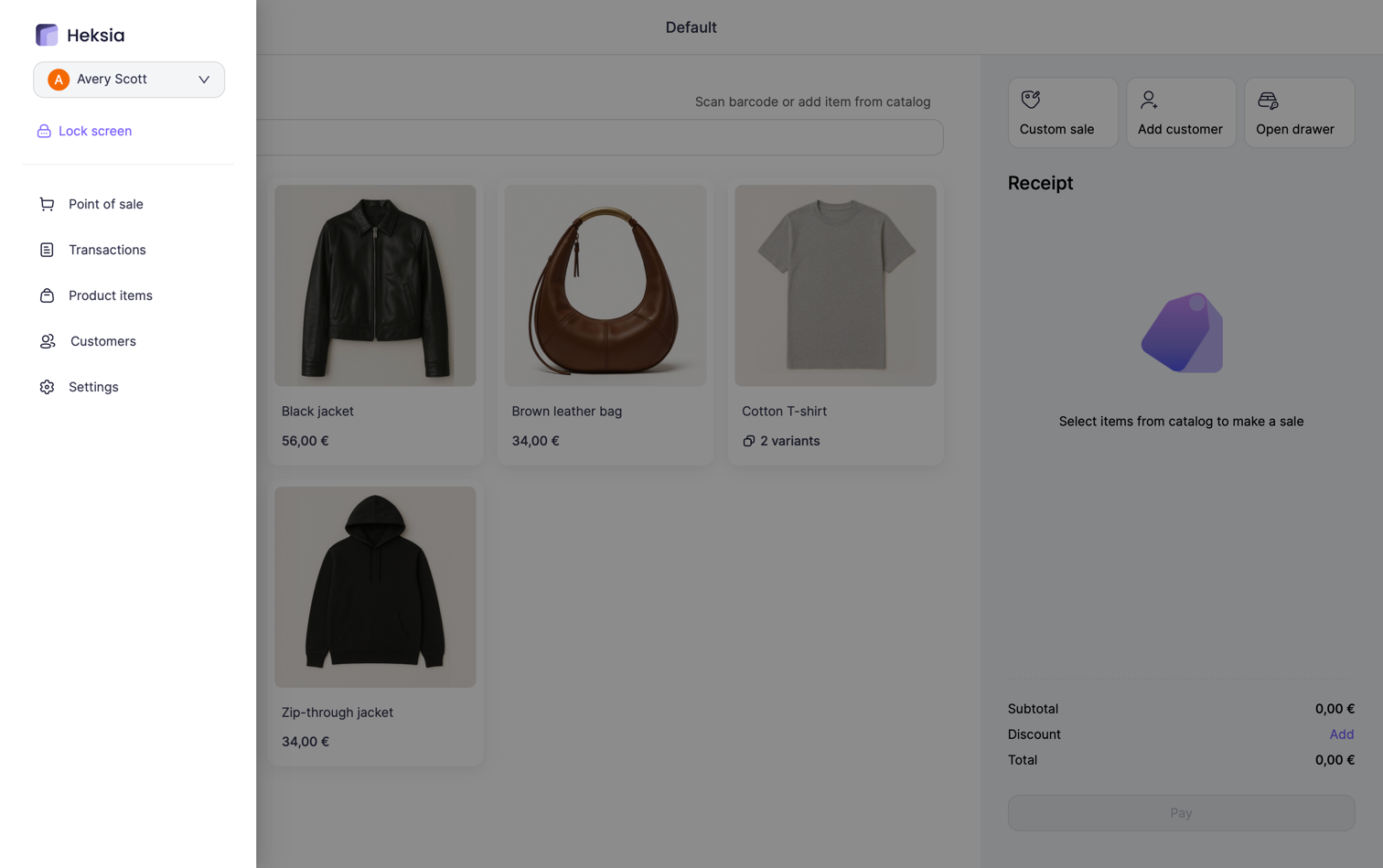
Signing in as a Cashier
- Cashiers and Admins can log in using their 4-digit PIN code.
- Each user receives their unique PIN by email when they are added in the Back Office.
- You can always view or update a user's PIN in Back Office → Users → Edit user.
- Cashiers can sign in only to the locations they have access to.
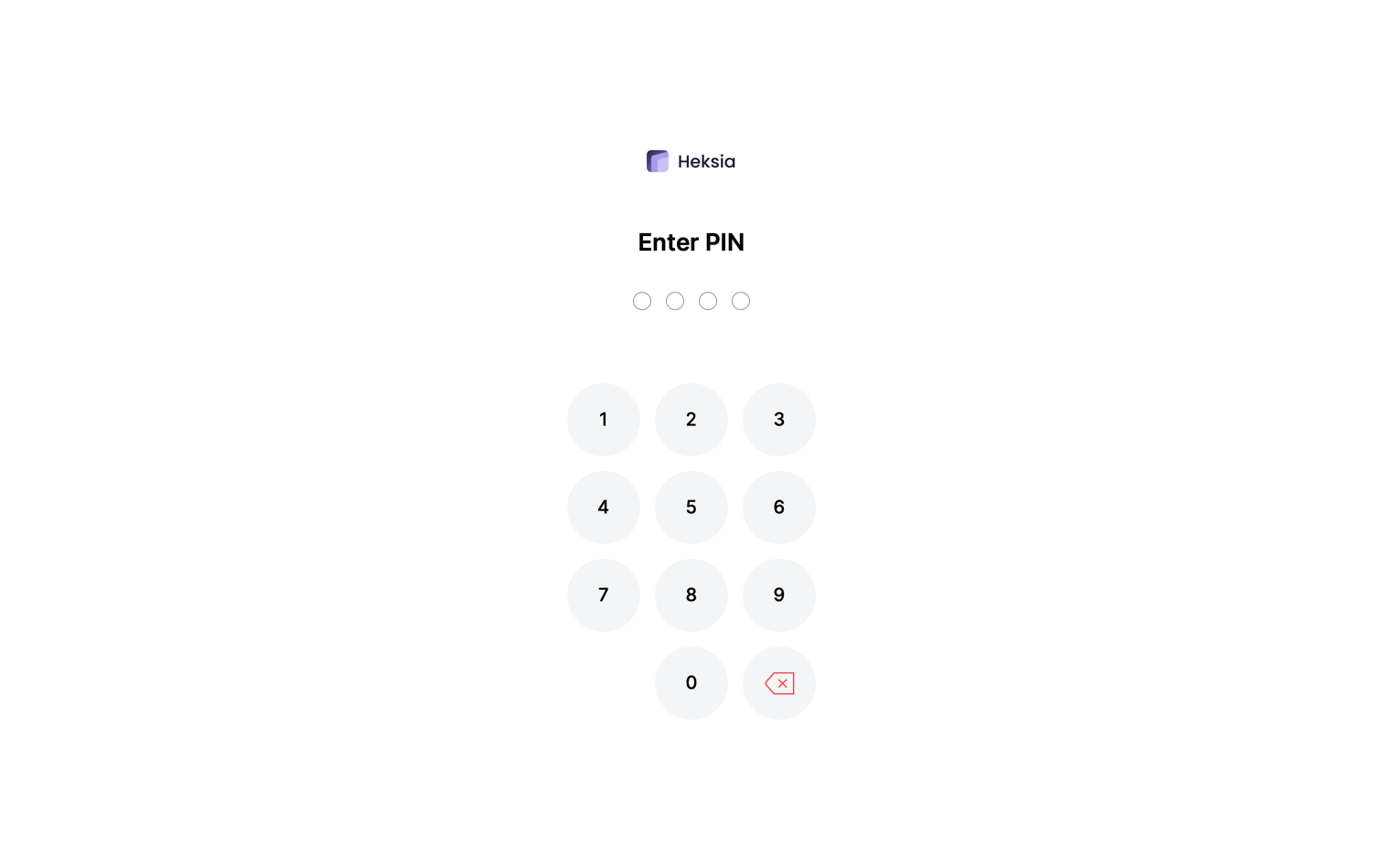
This allows fast, secure switching between staff members without entering email and password every time.
Switching Locations
Each POS session is always tied to a specific location.
If you need to switch to another location, a simple PIN relogin is not enough — the change must be made by an administrator.
How to switch locations
To switch the active location on the device:
- An Admin must open the menu (top-left corner).
- Click Log out.
- On the login screen, enter email and password of the Admin.
- After logging in, the system will ask you to select a company (if applicable).
- Then choose the desired location.
- You will be redirected to the POS main screen operating under the new location.
Important notes
- Cashiers cannot switch locations — only Admins can.
- The location selection appears only after a full login with email + password.
- After switching the location, cashiers can again use their PIN login to access the POS at that location.
This ensures that sales, stock updates, and reports are always tied to the correct store location.