Shifts
Shifts help you track who is responsible for sales and cash in the drawer during a working period.
Before you start
Shifts must be enabled in the Back Office.
If you don’t see shift controls in the POS app, ask the store owner or manager to enable shifts in settings.
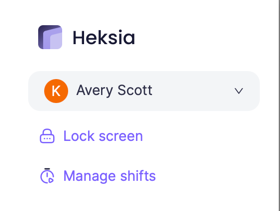
Where to find shifts in POS
In the POS app:
Menu → Manage shifts
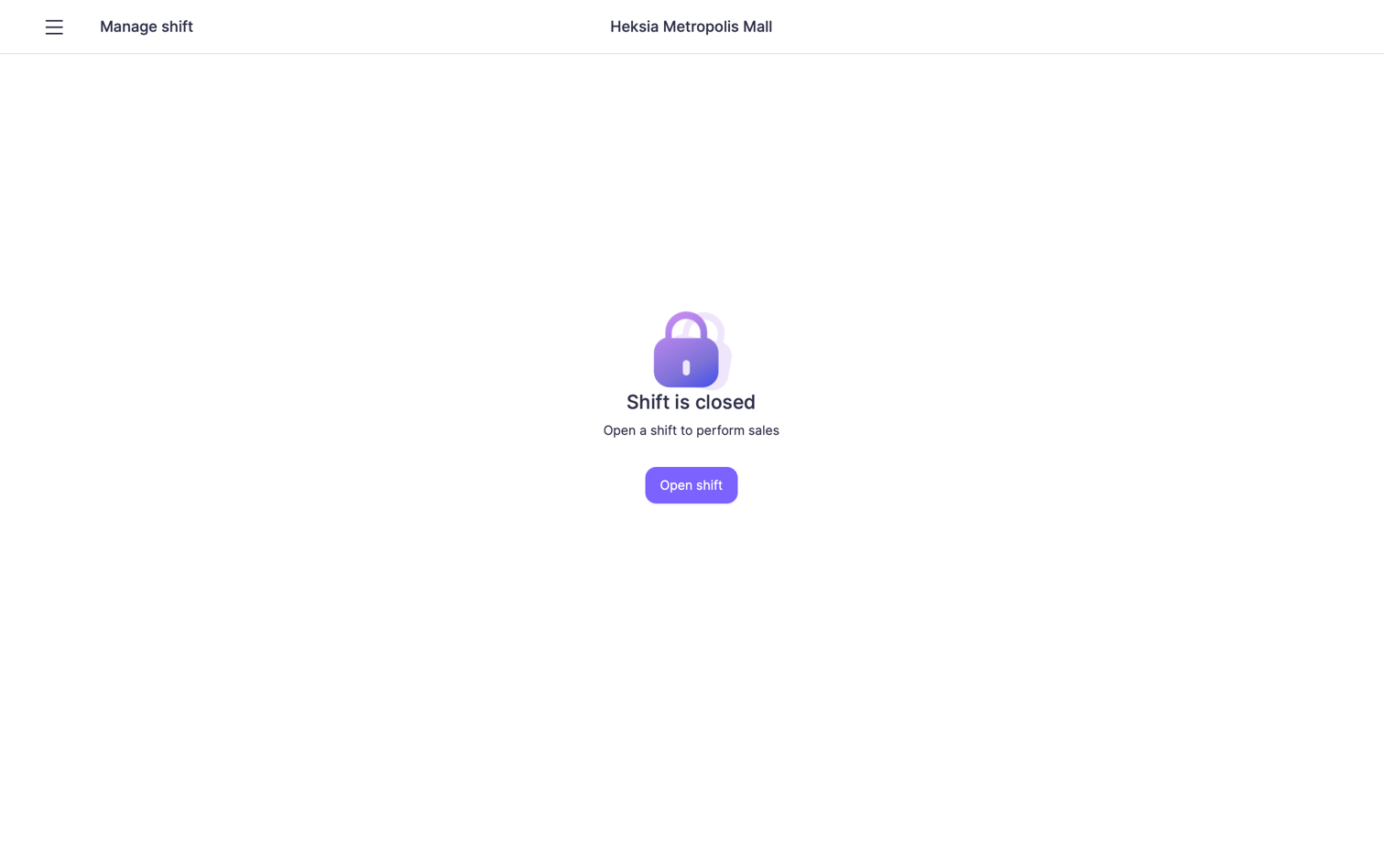
When shift is closed
If no shift is active, you'll see:
“Shift is closed. Open a shift to perform sales.”
You cannot make sales until a shift is opened.
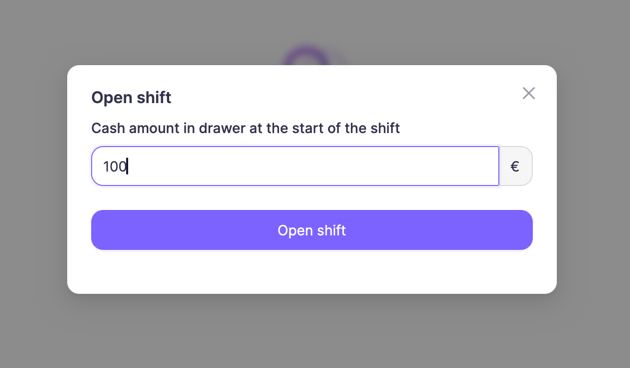
Open a shift
- Go to Menu → Manage shifts
- Tap Open shift
- Enter cash amount in drawer at the start of the shift
(how much money is physically in the cash drawer) - Tap Open shift
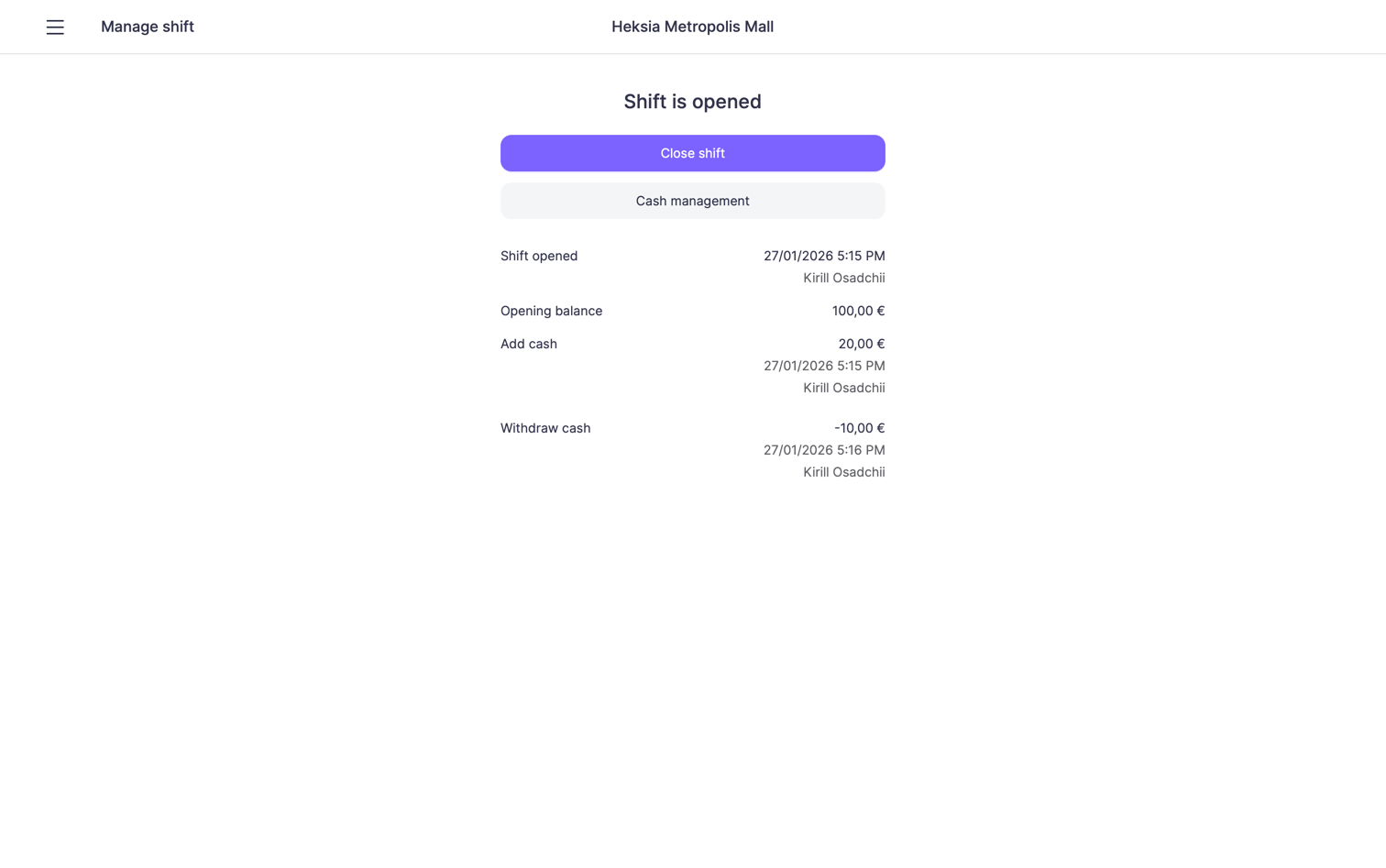
The shift is now active. You can make sales.
During the shift: cash operations
While the shift is open, you can manage cash in the drawer.
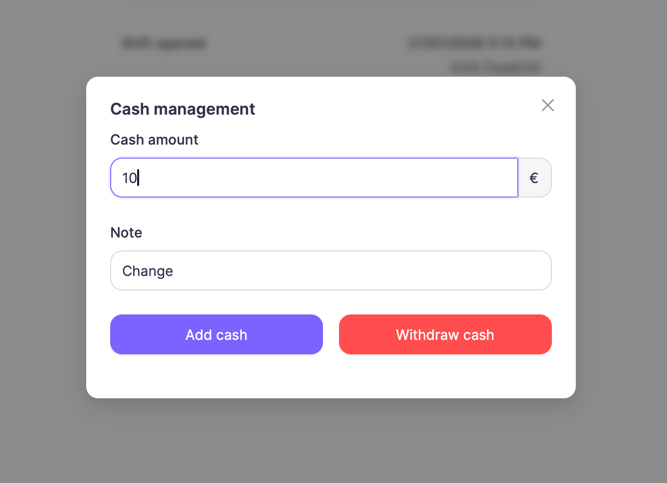
Add cash
Use this when you put money into the drawer (e.g. adding change).
- Open Manage shifts
- Tap Cash management
- Enter the amount
- Add a note (optional)
- Tap Add cash
Withdraw cash
Use this when you remove money from the drawer (e.g. safe drop).
- Open Manage shifts
- Tap Cash management
- Enter the amount
- Add a note (optional)
- Tap Withdraw cash
All operations are recorded in the shift history.
Close a shift
At the end of the working period, the shift must be closed.
- Go to Menu → Manage shifts
- Tap Close shift
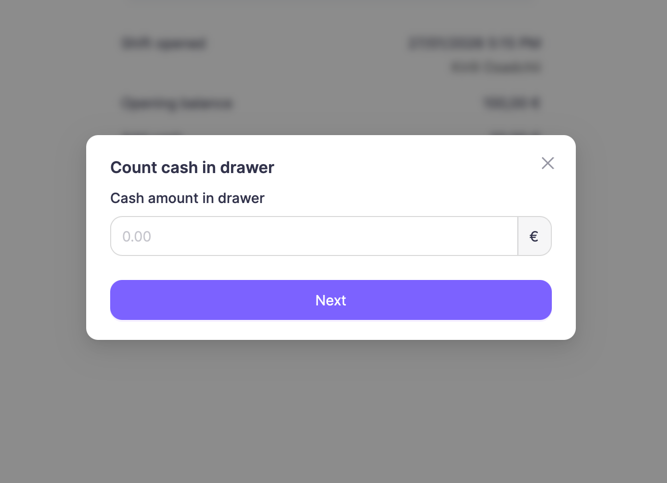
Step 1 — Count cash in drawer
Enter the actual amount of cash currently in the drawer (physical count).
Tap Next
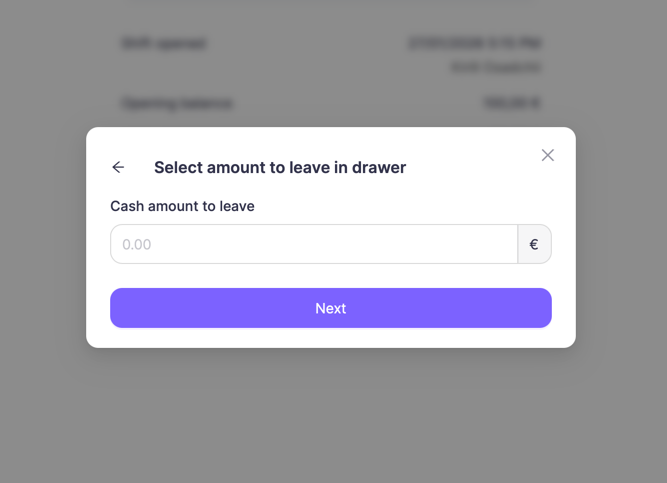
Step 2 — Select amount to leave in drawer
Enter how much cash should stay in the drawer for the next shift (float).
Tap Next
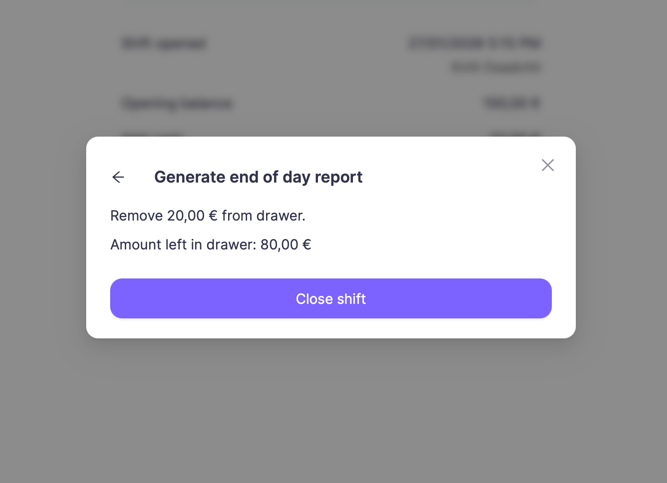
End of day summary
You will see a summary, for example:
- Amount to remove from drawer
- Amount left in drawer
Tap Close shift to finish.
The shift is now closed, and a report is generated.
Important
- Sales are linked to the active shift
- Each shift shows:
- Who opened it
- Opening balance
- Cash added / withdrawn
- Closing balance
- Always close shifts at the end of the day to keep reports accurate