Your Heksia Account
Your Heksia account is the central place where you manage your business, locations, employees, permissions, products, and POS settings.
Once your account is created, you can access both:
- Heksia Back Office — the web dashboard
- Heksia POS App — the Android application for in-store sales
This guide explains how to create, configure, and manage your Heksia account.
Creating Your Heksia Account
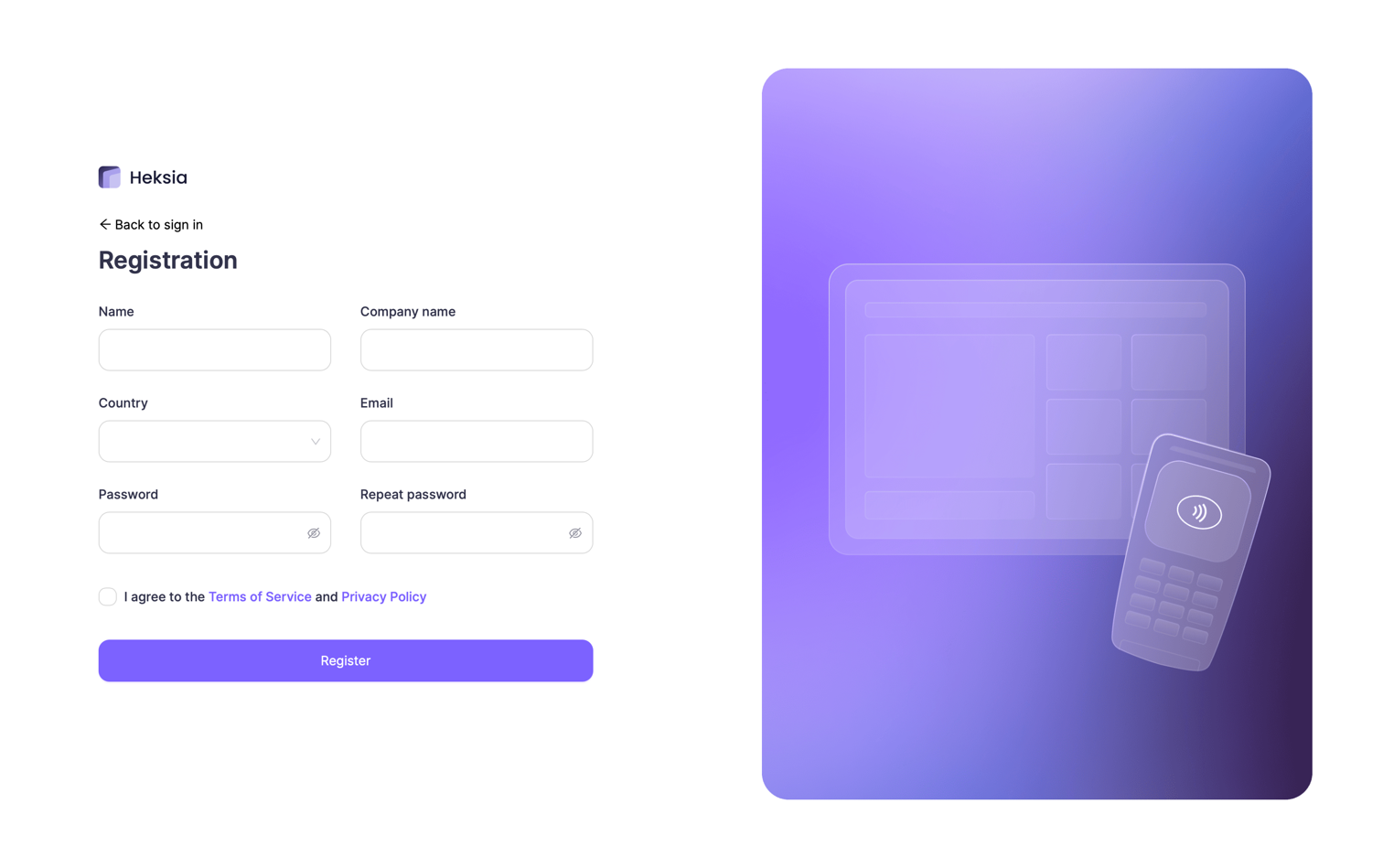
You can create your Heksia account directly on the website:
- Go to https://app.heksia.io/register
- Enter your name and company name
- Select your country
- Enter your email
- Create a password and repeat it
- Agree to the Terms of Service and Privacy Policy
- Click Register
You will receive a verification email.
After confirming your email address, you will be redirected to the Back Office, where you can configure your business settings.
Accessing the Back Office
The Back Office is the web dashboard where you configure your POS system and manage your business settings.
You can log in at:
In the Back Office you can:
- Add your business information (name, address, VAT, currency)
- Configure tax rules
- Create products and product variants
- Monitor inventory and product stock levels
- Add employees and assign permissions
- Review reports
- And much more
Adding Your Business Details
Before using Heksia POS in your store, you should complete your business profile.
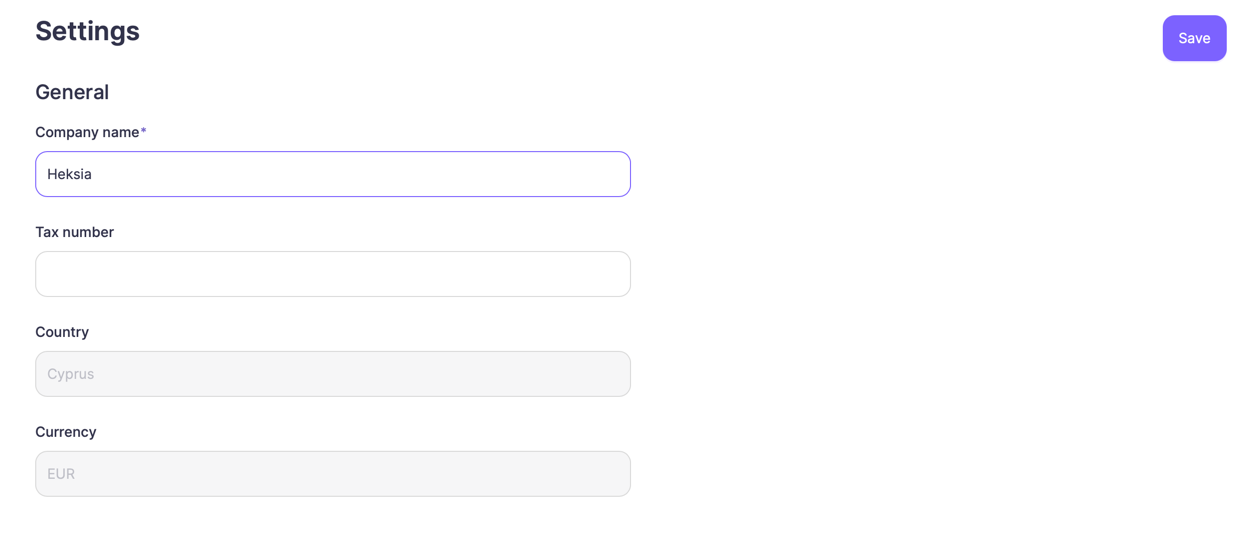
To update your business information:
- Open Settings → General
- Fill in the following fields:
- Company name
- Tax number – this number will appear on printed receipts (if applicable)
- Country (set automatically based on your registration)
- Currency (set automatically based on your country)
- Click Save
Your tax number will appear on printed receipts.
If you need to change your country or currency, contact us at:
support@heksia.io
Updating Your Personal Information
You can update your personal details at any time in the Back Office.
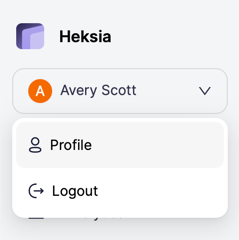
To access your profile:
- Click your name in the top-left corner of the Back Office
- Select Profile
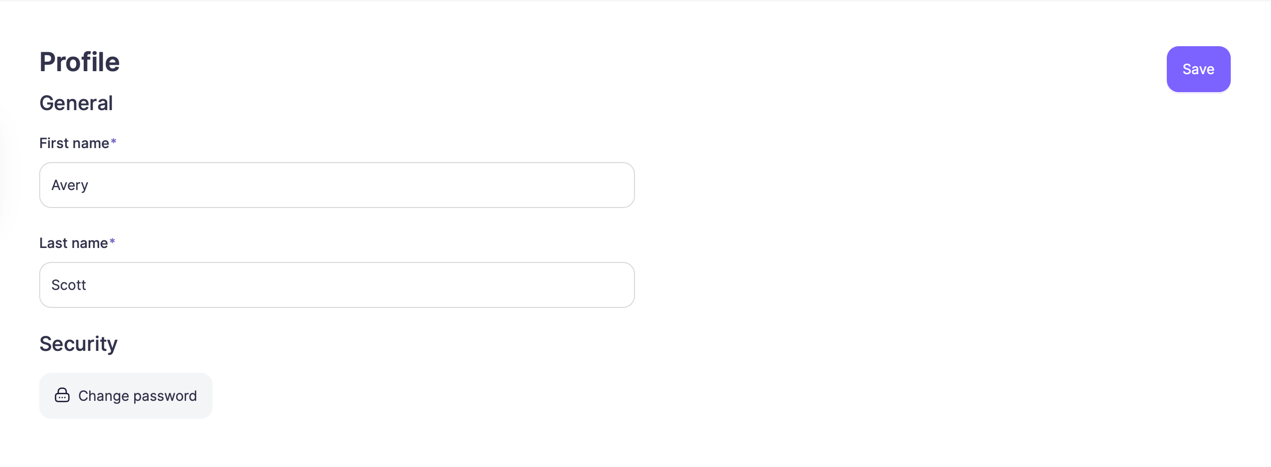
In your profile, you can edit:
- First name
- Last name
After making changes, click Save in the top-right corner.
Changing Your Password
For security, you can change your password from the same page:
- Open Profile
- Scroll down to the Security section
- Click Change password
- Enter your current password
- Set and confirm your new password
Passwords affect both:
- Back Office access
- Heksia POS App login
If you forget your password, use the “Forgot password” option on the login page to reset it.