Product Items
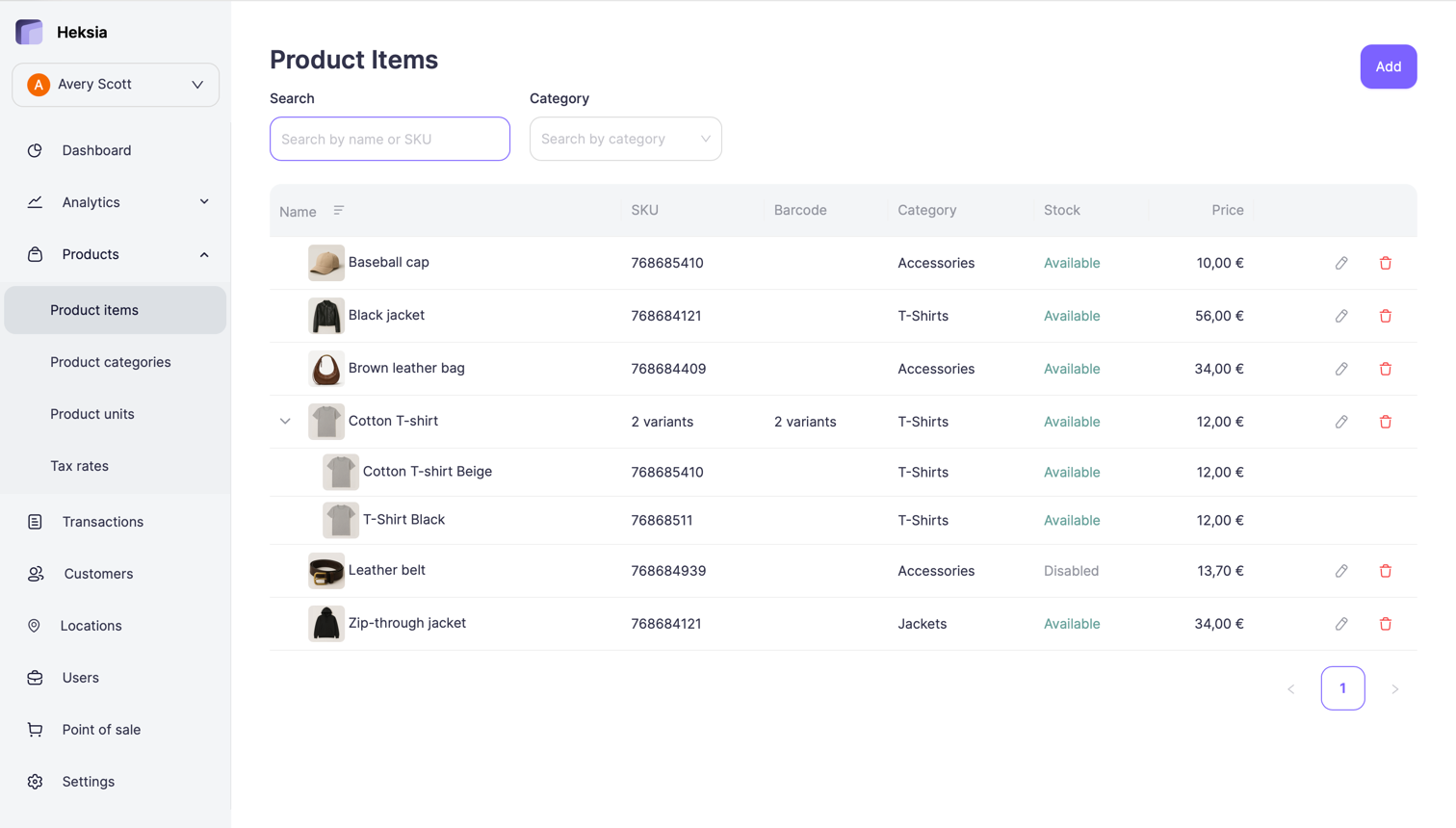
The Product items page displays all the products in your catalog, including items with variants.
From this page, you can view product details, search, filter by category, and manage product availability.
To access the list of products:
- Open the Back Office
- Go to Products → Product items
The product list includes the following information:
- Image — the product photo (or placeholder if none is uploaded)
- Name — the product or parent product name
- SKU — the product SKU or the number of variants
- Barcode — the assigned barcode or “X variants” if multiple
- Category — the product category (with an assigned tax rate)
- Stock — availability status
- Price — the selling price (or price range for variants)
Product Variants
If a product has variants (e.g., different colors or sizes), it appears as a collapsible group.
Clicking the arrow expands the list to show each variant with its own:
- SKU
- Barcode
- Stock status
- Price
- And other attributes
Variants automatically inherit the category, unit, and tax rate from the parent product. These settings cannot be changed per variant.
Creating a Product Item
To add a new product to your catalog:
- Open the Back Office
- Go to Products → Product items
- Click the Add button in the top-right corner
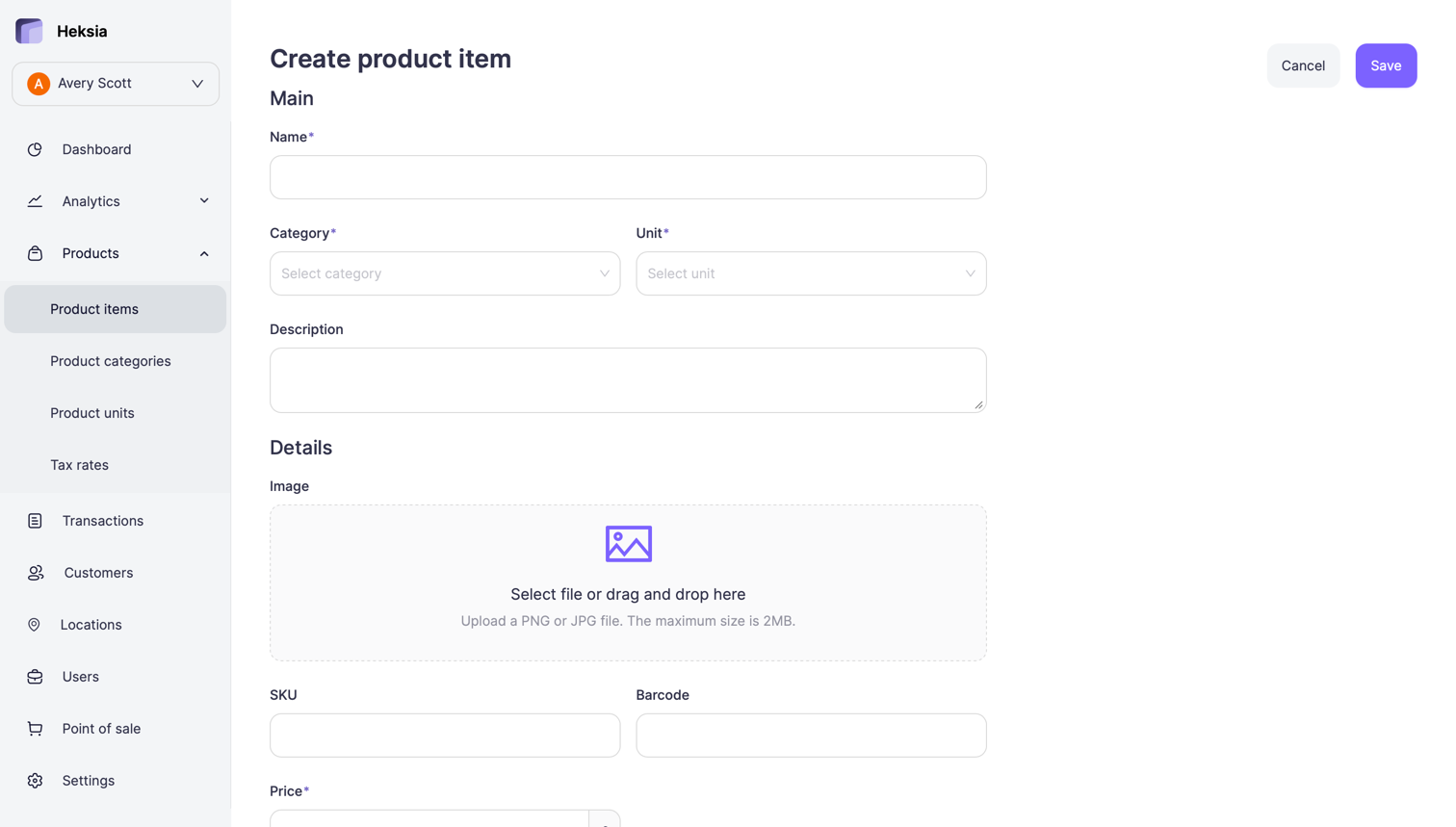
The product creation page consists of two main sections: Main and Details.
Main
These fields define the basic information about your product:
- Name* — the product name shown in the POS app and receipts
- Category* — choose a category; it determines the tax rate
- Unit* — the measurement unit (e.g., Item, KG, Liter)
- Description — an optional description of the product
Details
This section defines pricing, identifiers, and images:
- Image — upload a PNG or JPG (max 2MB). You can drag and drop or select manually.
- SKU — internal product code (optional)
- Barcode — physical barcode (optional, used for barcode scanning in POS)
- Price* — the selling price of the product
- The assigned tax rate is shown below the price (based on the selected category)
Stock Management
You can enable stock tracking for products to manage inventory levels across your locations.
When Enable stock management is turned on:
- You can configure stock levels separately for each location
- You can perform stock actions such as:
- Stock received — adding new stock
- Inventory re-count — updating the stock to a corrected, accurate value
- Damage — removing items damaged and unsellable
- Theft — removing items due to theft
- Loss — removing items lost for any reason
- Return — adding stock back after a product return
- You can add or remove stock and see the updated quantity immediately
- You can enable low stock alerts for each location to be notified when stock reaches a defined threshold
If stock tracking is turned off, the product is always available for sale.
In the product list, its stock status will be shown as Disabled, and no stock quantities will be tracked.
Variants (Optional)
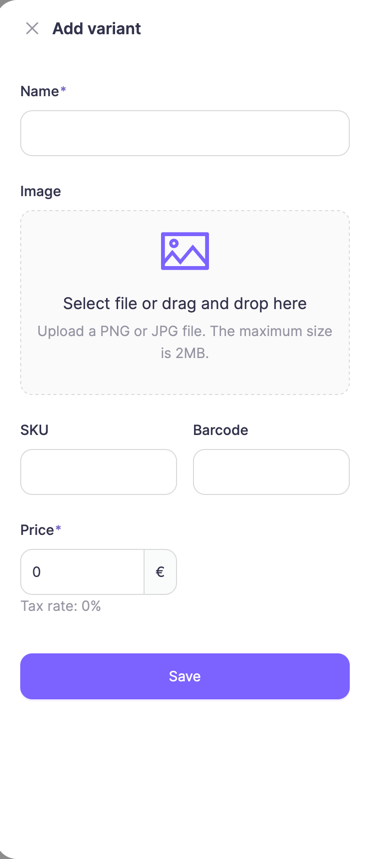
If your product comes in multiple variations (e.g., sizes, colors), click Add variant.
Each variant has its own:
- Name
- Image (optional)
- SKU
- Barcode
- Price
- Stock (if stock management is enabled)
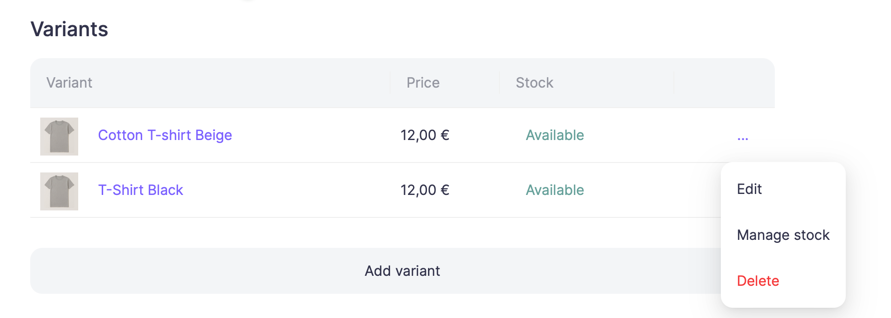
After the first variant is added:
- The fields from the Details section (SKU, Barcode, Price, Image) move to the Variants level
- The product becomes a parent item, and all variants are grouped in a table for easier management
- Each variant row shows its price and stock status, with options to edit or manage stock
Variants always inherit the category, unit, and tax rate from the parent product.
These settings cannot be changed individually for variants.
Saving the Product
Once all fields are filled in:
- Click Save in the top-right corner
- The product will appear in your Product items list and will be available in the POS app
Editing a Product Item
You can update any existing product from the Product items list.
To edit a product:
- Open the Back Office
- Go to Products → Product items
- Click the Edit icon next to the product you want to modify
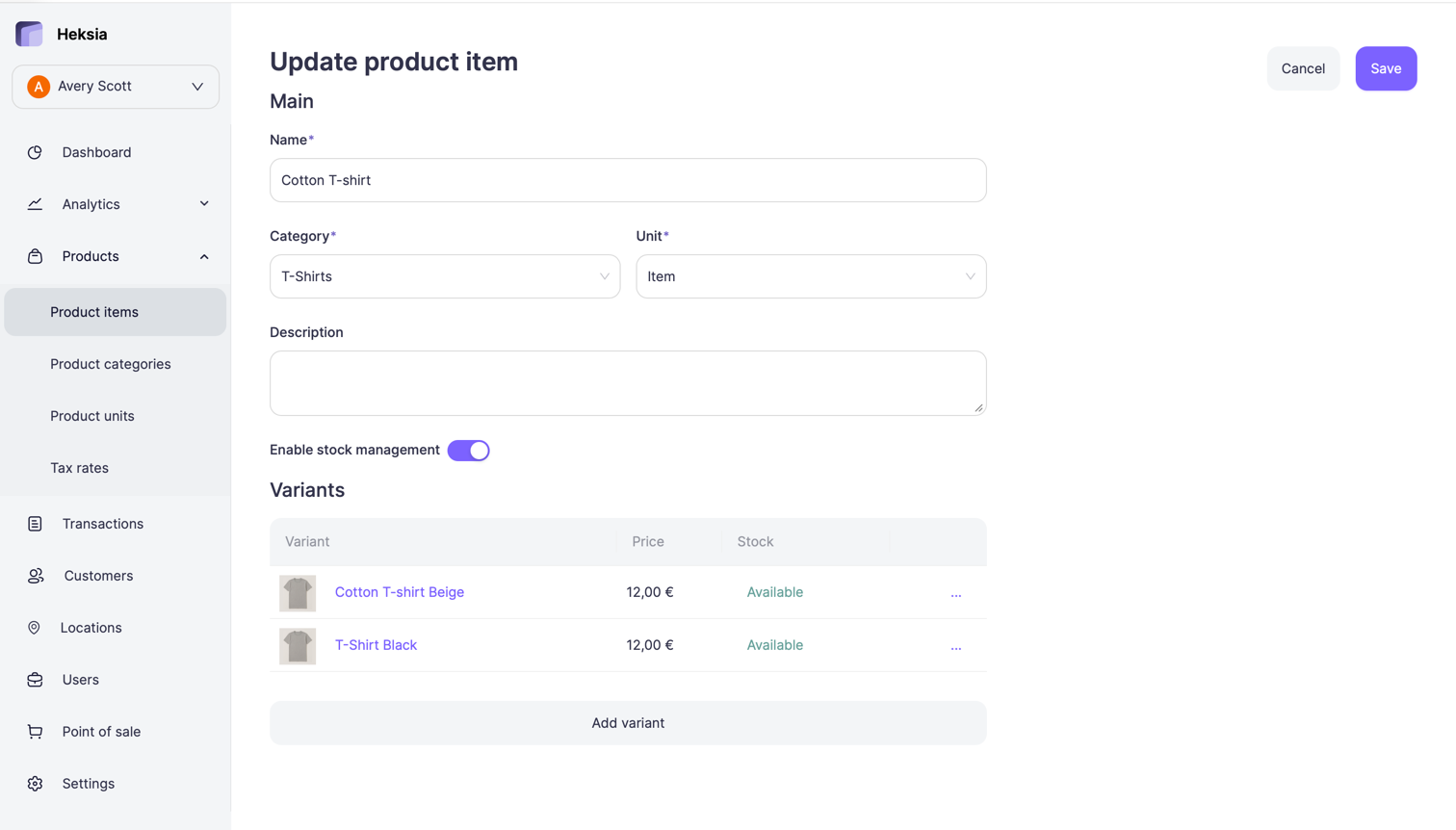
You will see the same form used for creating a product, with the current details pre-filled.
Editing Variants
Variants are grouped under the Variants section for easier management.
Each row shows the variant’s image, name, price, and stock status.
To edit a variant:
- Click on the variant name, or
- Click the three dots (...) on the right and select Edit
You can update the variant’s name, image, SKU, barcode, price.
Variants always inherit the category, unit, and tax rate from the parent product.
To manage stock for a variant:
- Click on the Stock cell in the list, or
- Click the three dots (...) and select Manage stock