Adding Users
The Users section allows you to manage who has access to your Back Office and the Heksia POS app.
Each user has a role, email, status, and creation date.
To access the user list:
- Open the Back Office
- Go to Users
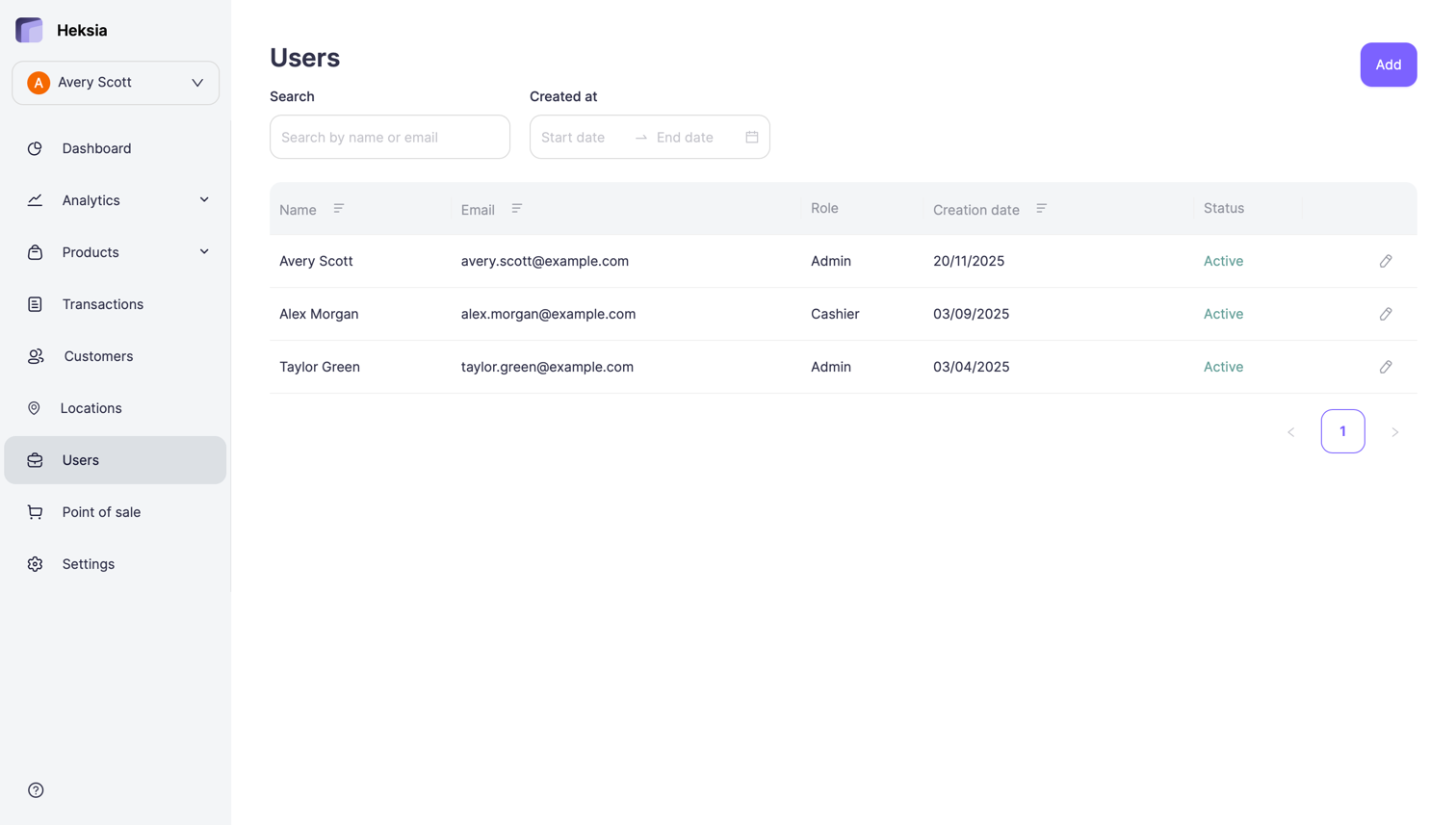
You can search users by name or email and filter by creation date.
Roles
Heksia supports different user roles, such as:
- Admin — full access to all Back Office features and full access to the Heksia POS app
- Cashier — access only to the Heksia POS app (no access to the Back Office)
Adding a New User
- Click the Add button in the top-right corner
- Fill in the user details:
- First name
- Last name
- Role
If you select the Cashier role, you can also set the user’s Access to locations:
- By default, cashiers have access to all locations
- You can restrict access by selecting specific locations from the list
Admins always have access to all locations.
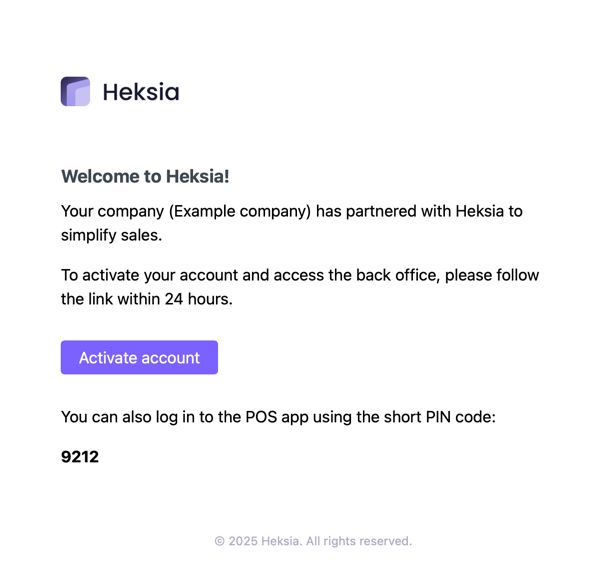
After creating a user, Heksia automatically sends them an invitation email.
The email contains:
- A link to activate the account and set a password (valid for 24 hours)
- If the user is an Admin, they will also receive a short PIN code for logging in to the Heksia POS app
- If the user is a Cashier, they receive only the PIN code, since cashiers do not access the Back Office
Editing a User
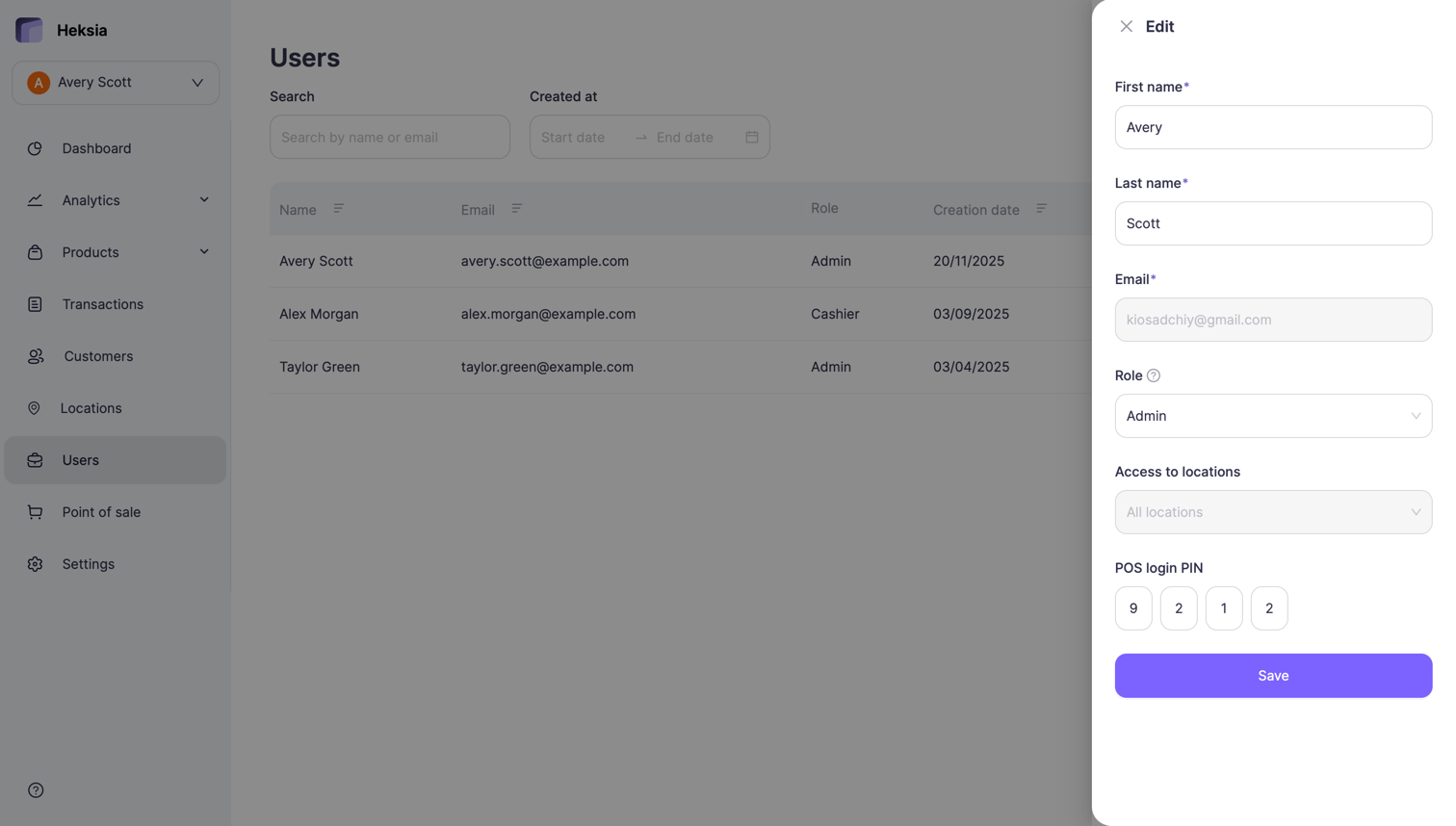
To edit a user:
- Go to Users
- Click the Edit icon next to the user
- You can update:
- First name
- Last name
- Role
- Access to locations (for Cashier only)
- POS login PIN — you can generate or manually change the user’s short PIN code for the Heksia POS app
Click Save to apply changes.