Taxes
You can manage your tax rates in the Back Office under Products → Tax rates.
Tax rates are applied to product categories, and all products inside a category will use the selected tax rate during checkout to calculate the correct taxes for each product.
From this page, you can view, create, edit, and remove tax rates.
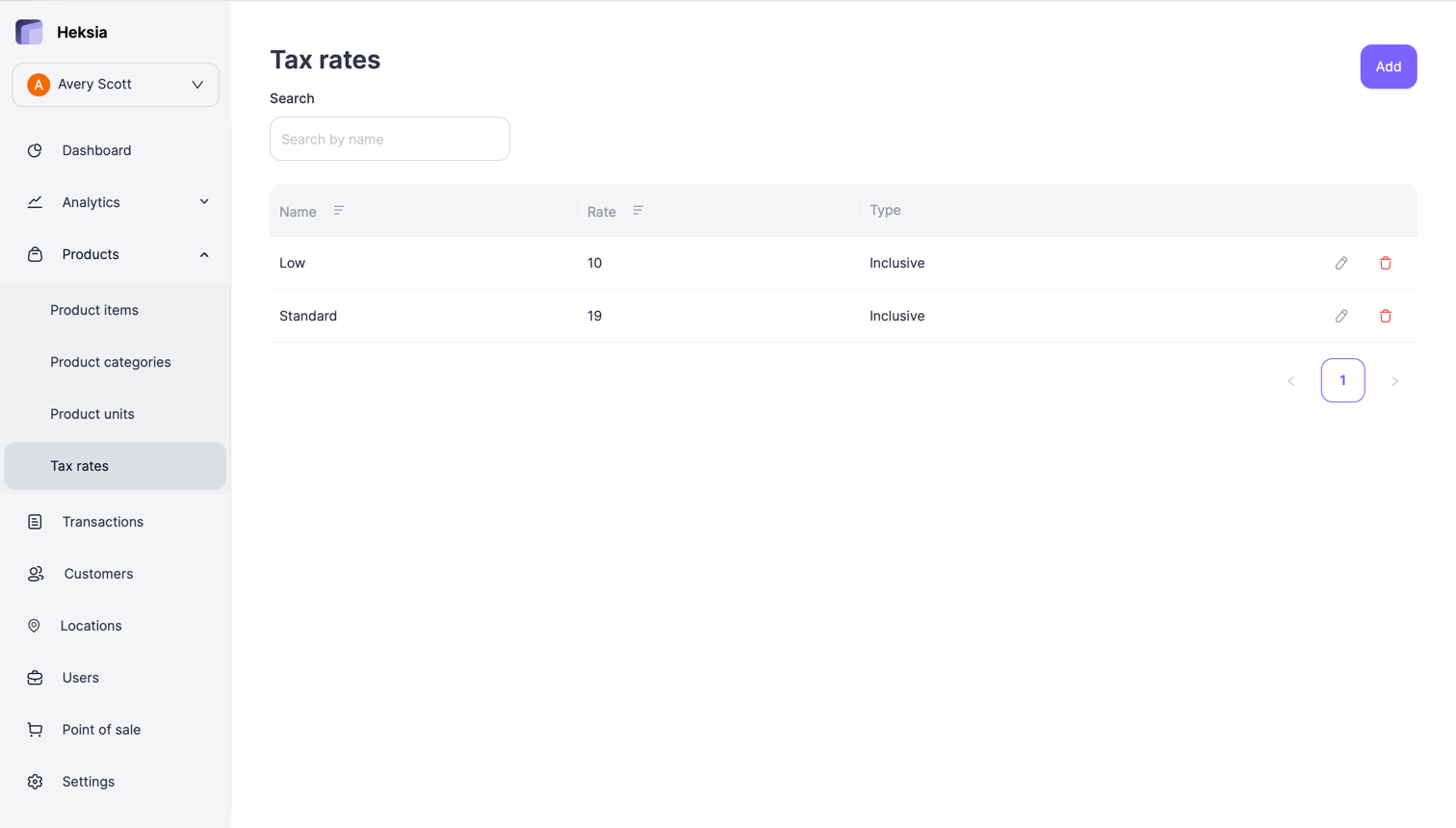
Adding a New Tax Rate
- Click the Add button in the top-right corner
- Fill in the tax rate details:
- Name — the name of the tax (e.g., Standard, Reduced)
- Rate, % — the tax percentage
- Tax calculation:
- Inclusive tax — the tax is already included in the product price
- Additive tax — the tax will be added on top of the product price
- Click Save
The new tax rate will appear in your list and can be assigned to products.
Editing a Tax Rate
- Go to Tax rates
- Click the Edit icon next to the tax rate
- Update any of the available fields:
- Name
- Rate, %
- Tax calculation type
- Click Save
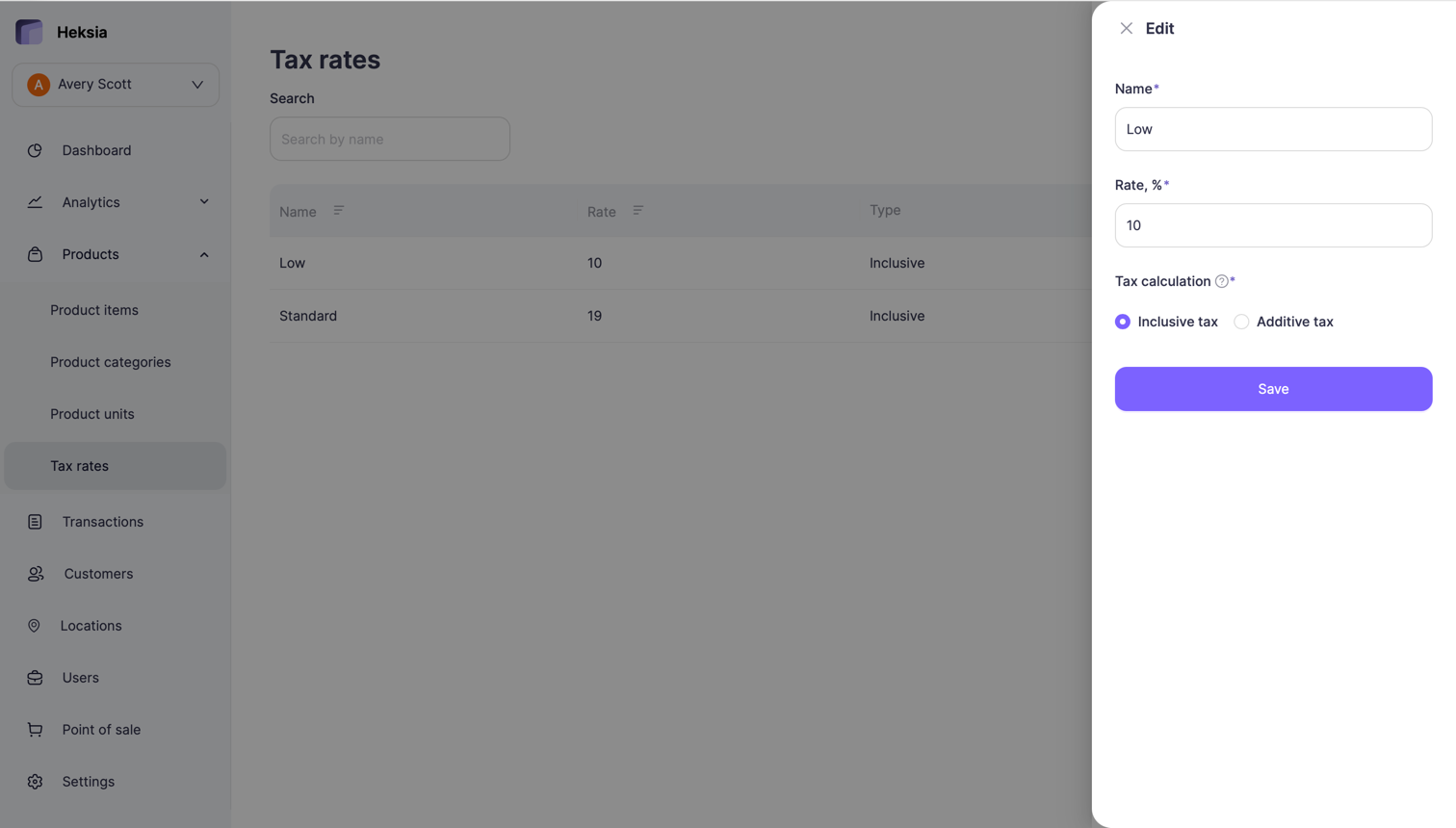
Changes apply immediately and will be used for future sales.
Removing a Tax Rate
- Open Tax rates
- Click the Delete icon next to the tax rate
- Confirm deletion
A tax rate can be removed only if it is not assigned to any products.