Product Units
Product units define how products are measured and sold in your store.
Each unit has a name (e.g., Item, KG, Liter) and a precision that determines how many decimals can be used when entering quantities.
For example:
- Precision 0 → whole numbers only (1, 2, 3)
- Precision 2 → two decimals allowed (0.25, 1.50, 3.75)
- Precision 4 → up to four decimals (useful for weight-based items)
To access product units:
- Open the Back Office
- Go to Products → Product units
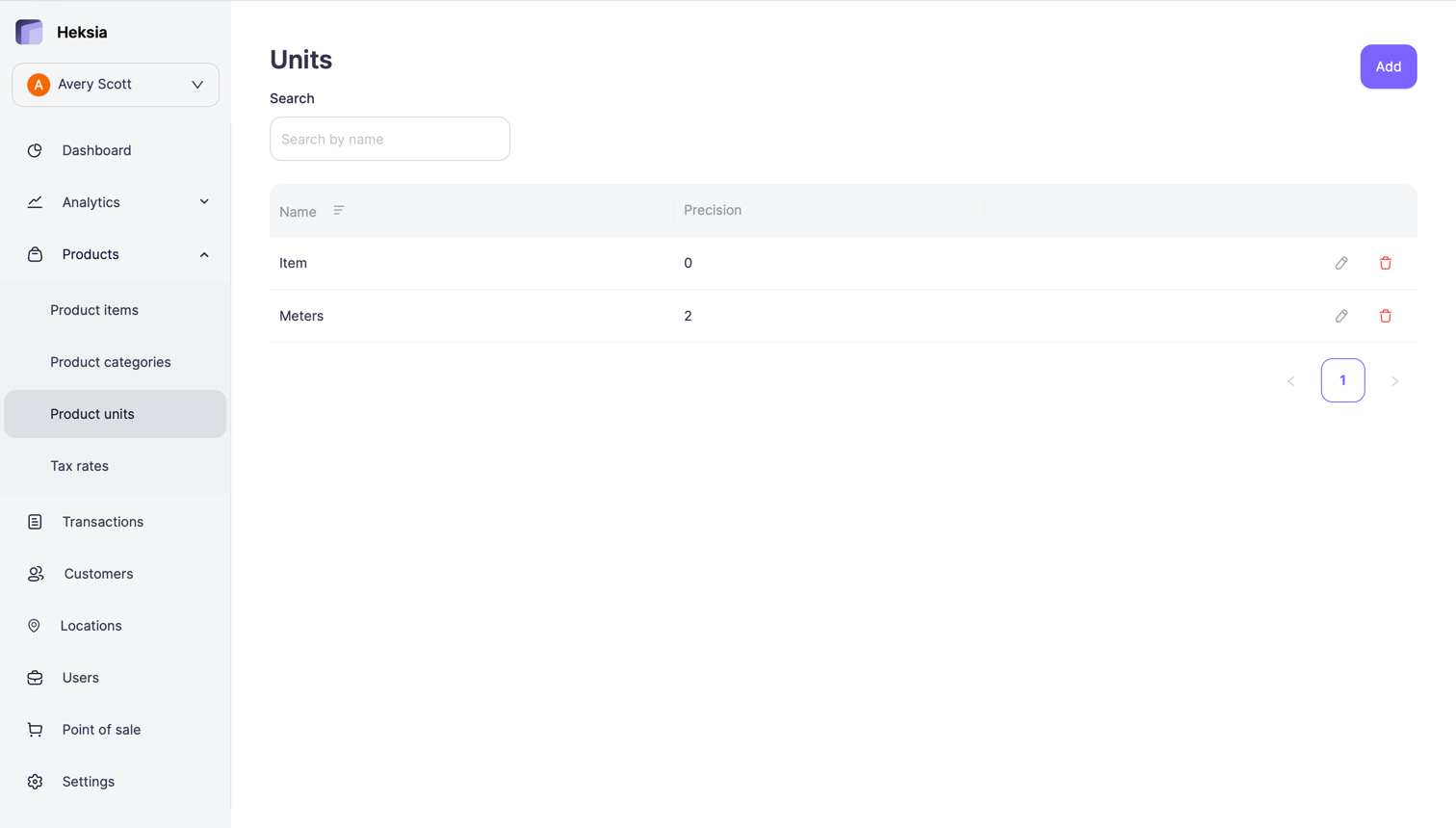
From here, you can view, create, edit, and remove units.
Adding a New Unit
- Click the Add button in the top-right corner
- Enter the Name of the unit
- Select the Precision (number of decimal places)
- Click Save
The new unit will become available when creating or editing products.
Editing a Unit
- Go to Product units
- Click the Edit icon next to the unit
- Update:
- Name
- Precision
- Click Save
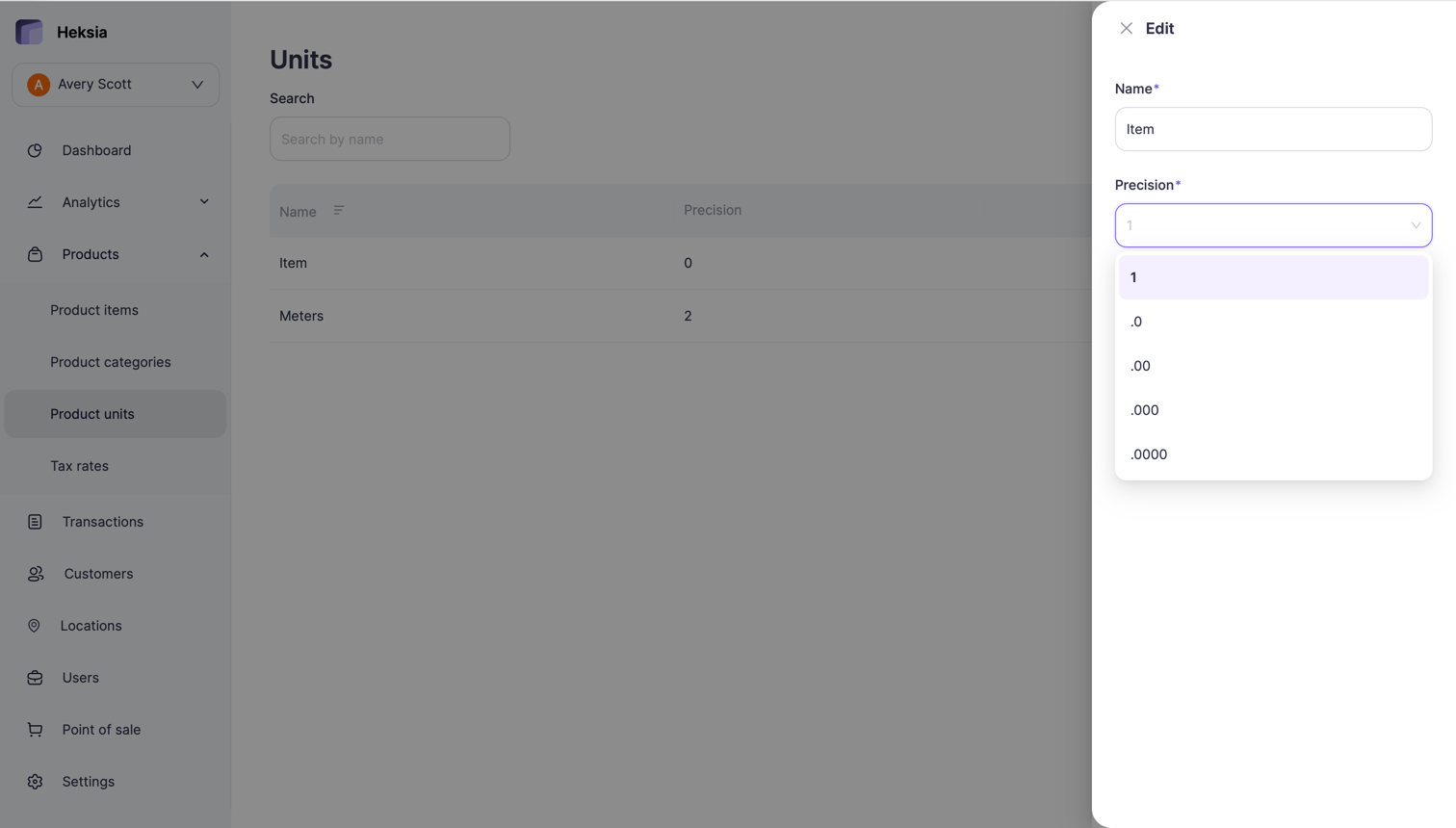
Changes apply immediately and affect how product quantities are handled.
Removing a Unit
- Open Product units
- Click the Delete icon next to the unit
- Confirm deletion
A unit can be removed only if it is not used by any products.